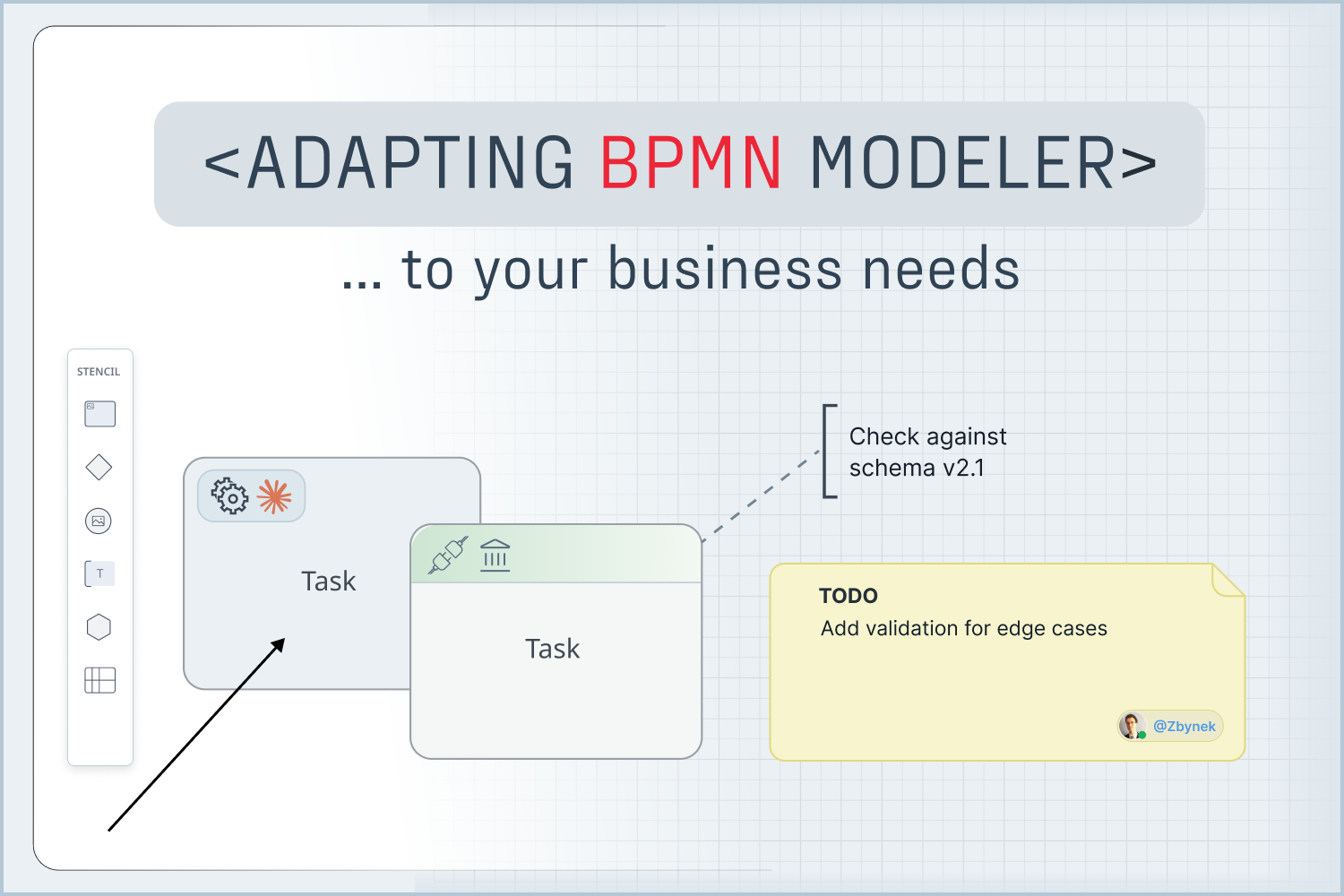

When it comes to BPMN modeling, vendor-provided solutions – e.g. Camunda Modeler or Flowable Design – may seem like the most straightforward option. You install one, open it, and start drawing processes. Why would anyone need any more than that? Well, for internal-only tooling within a small team, the convenience may be enough. However, if you are tasked with developing a workflow modeler UI for serving external customers, one that matches your product’s design language, or one that is able to do anything beyond vanilla BPMN editing, you will quickly discover that the customization options of vendor BPMN modelers are inherently unable to accommodate your application’s unique requirements.
This may be the point where we – being developers – may begin asking ourselves: “Why don’t we build the modeler ourselves?” (or alternatively, “Why don’t we get an AI to make all of it for us?”). They are both valid options to consider, of course, but as we argue in our article about the unexpected complexity of diagramming, reinventing the wheel in this case means contending with intricate issues which may not be immediately apparent to an uninitiated developer (even if they have a frontier model at their fingertips). The amount of unknown unknowns in this domain is too large, and the opportunity cost of rediscovering the problems one by one is too great.
In our opinion, getting help along the way from a mature diagramming library with BPMN support – like JointJS – is what tips the scale in your favor. Having the rendering, interaction, and layout diagramming foundations available out-of-the-box while still being in complete control of everything that your users actually see and touch hits the sweet spot between the rigidity of vendor tools and the pain of reinventing the wheel.
In previous articles in this series, we covered why BPMN modeling and execution can be decoupled, and what makes building a BPMN modeler harder than it looks. Here, we will take a different angle. We will look at the specific capabilities that a custom BPMN modeler unlocks, and at how those can be implemented with features of JointJS.
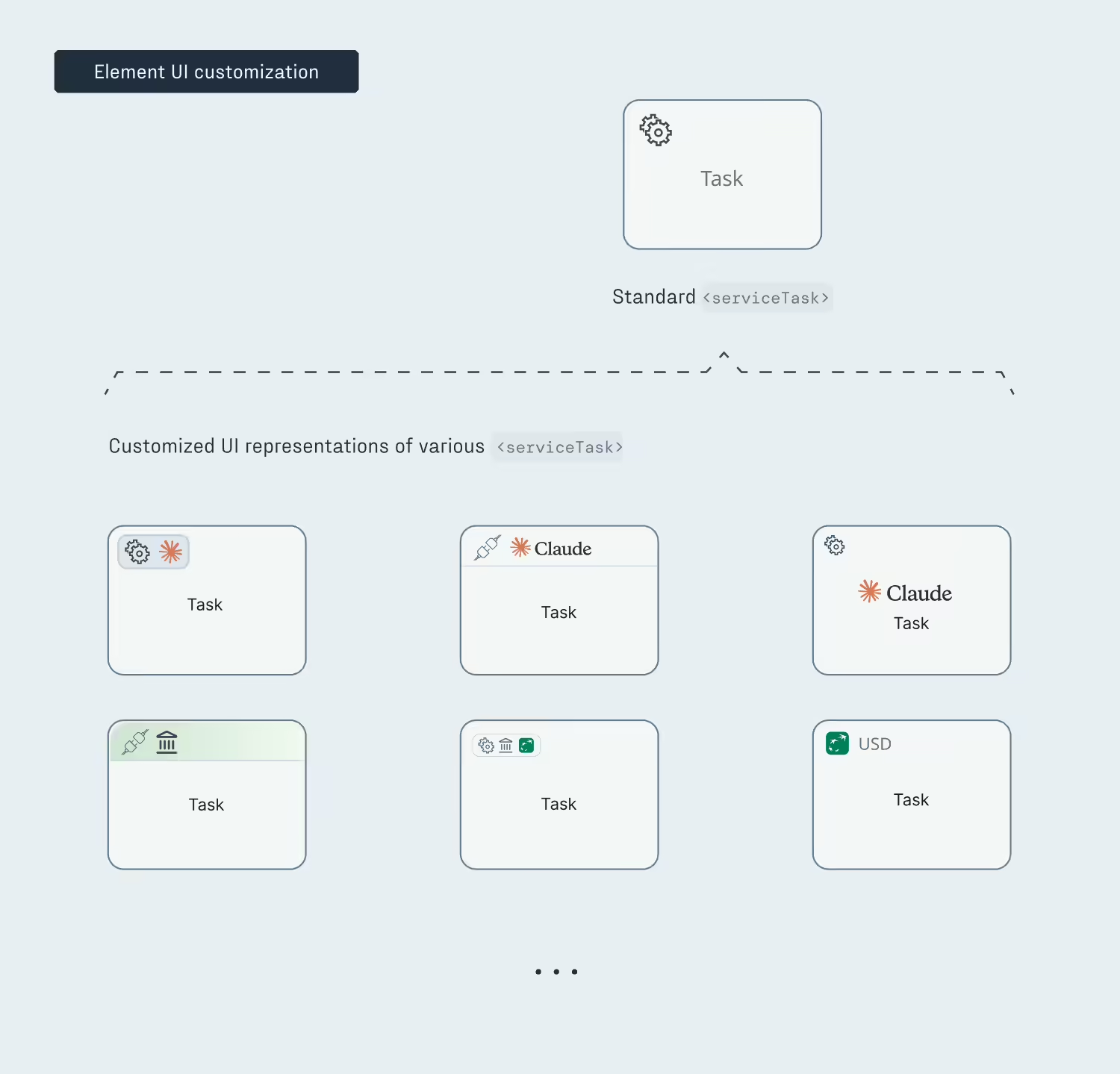
BPMN defines over 100 symbols, but your domain almost certainly differentiates between concepts that cannot be easily disambiguated with the standard notation alone. While all BPMN modeling interfaces need to support the entirety of BPMN standard (and most of them do), a modeler that provides only BPMN-standard shapes with no way to add custom ones (i.e. many vendor modelers) may force you to use the same symbol for representing multiple distinct actions, leaving your users confused. For example, while it is true that “Call backend service,” “Call external REST API,” and “Run AI pipeline” may all be appropriately represented with the same BPMN shape – <serviceTask> – your users may be confused why they see identical-looking boxes for three actions which work completely differently.
With JointJS, you can ease your users’ cognitive load by defining custom shape classes that extend the base BPMN elements with domain-specific markup, icons, and default properties. In the Camunda integration demo, for example, the HTTP Connector is a custom JointJS shape that inherits from Activity and carries its own default httpConfig (URL, method, headers, body, timeouts) alongside Camunda-specific properties like retries and retryBackoff.
export class HttpConnector extends Activity {
  defaults() {
    return util.defaultsDeep(
      {
        type: 'activity.HttpConnector',
        httpConfig: {
          url: '',
          method: 'GET',
          headers: '',
          body: '',
          resultVariable: '',
          connectionTimeoutInSeconds: 20,
          readTimeoutInSeconds: 20,
        },
        resultExpression: '',
        errorExpression: '',
        retries: 3,
        retryBackoff: 'PT0S',
        inputMappings: [],
        outputMappings: [],
        attrs: {
          icon: {
            iconType: 'service',
          },
          label: {
            text: 'HTTP Request',
          },
        },
      },
      super.defaults(),
    );
  }
}The shape is visually distinct from the generic Service Task shape, carries the right icon, and – crucially – it knows what fields belong in its property panel.
The principle is simple – each shape in your modeler needs to represent a single concept that your users understand, and each shape needs to correspond to a standard BPMN shape that other parts of the BPMN ecosystem can interface with.
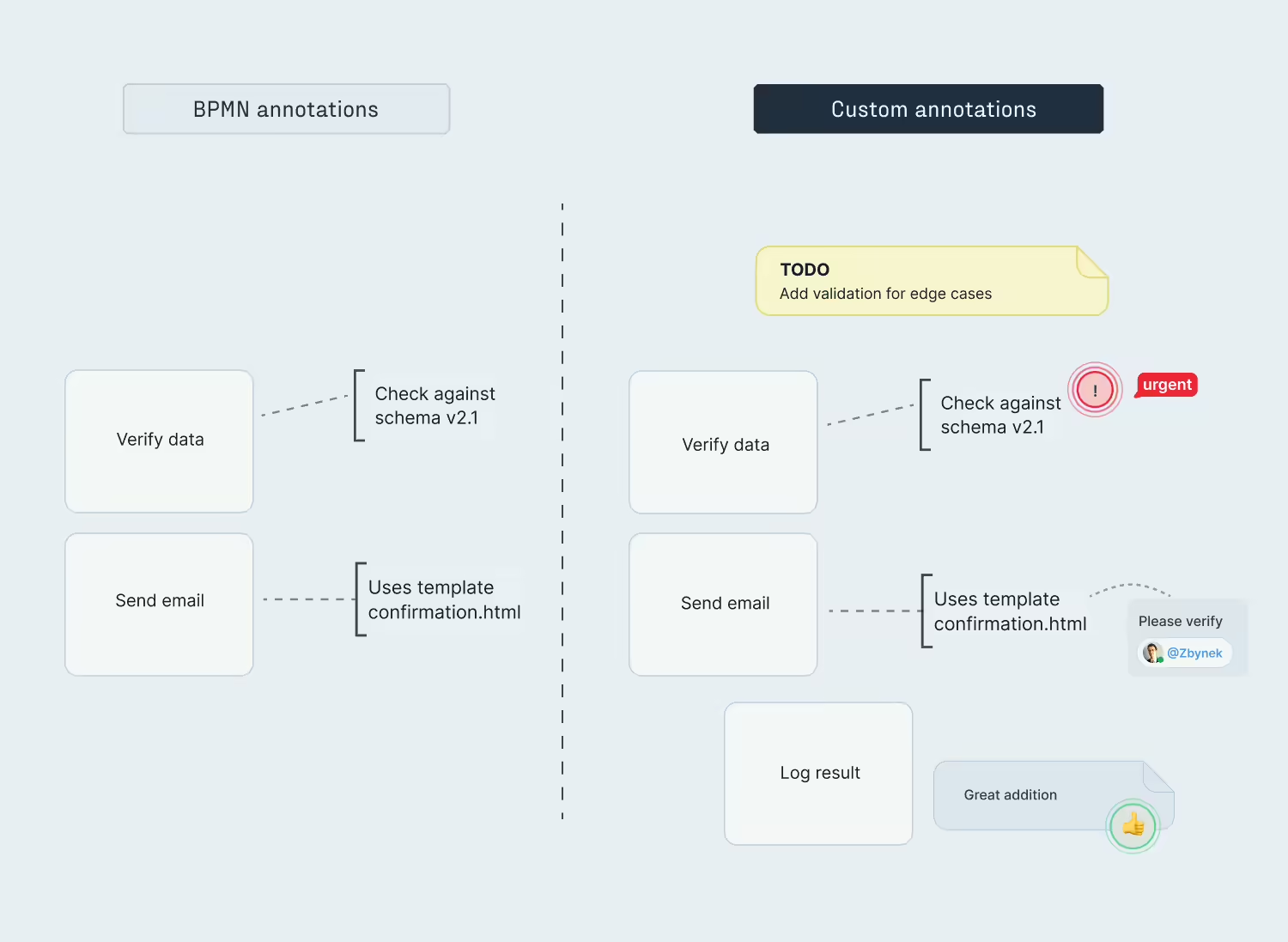
When it comes to diagram annotations, vendor-provided modelers often limit themselves to the standard BPMN text annotations, which are constrained to BPMN specification’s notion of what a note looks like and how it behaves. That is, simple text boxes which are always connected to one specific diagram element. However, this may not be enough to support internal team collaboration, where different annotation styles may be required for the benefit of less-technical stakeholders, e.g. floating sticky-note comments, color-coded status labels, team assignment badges, or freeform documentation areas. Moreover, these notes are often intended purely for the design phase, and are not expected to be part of the exported BPMN XML – in those cases, the limitation of vendor-provided modelers to BPMN shapes only becomes too rigid.
Meanwhile, JointJS’s shape system treats non-BPMN shapes as just another type of diagram element – you can define their shapes with arbitrary SVG or HTML markup, position them freely, and decide at export time whether they should be included in the BPMN output or treated as purely visual documentation.
The freedom to separate what the user sees from what the engine receives lets you use your own shapes wherever they make sense for you.

Although supporting the entirety of BPMN 2.0 specification is a requirement for the modeler, deciding which ones to present to your users is a separate concern. After all, having all 100+ shapes in the element palette would be overwhelming for all but the most expert of power users. Although vendor modelers typically allow some shapes to be hidden, the overall structure, ordering, and visual presentation of the element palette tend to be locked down.
That is where the programmability of JointJS’s Stencil component offers a solution. It allows you to decide which shapes (whether standard BPMN shapes, custom shapes, or non-BPMN annotations) should appear in the palette – and how they should be grouped, labeled, and previewed for your users. For instance, if your company’s workflows only use a limited subset of BPMN (or if you are limited by your execution engine), making only those elements available in the palette is a good idea.
Curating the element palette makes your modeling interface approachable for your users, and it ensures the validity of the generated diagrams for your domain.

Although the property panel is not visible at first glance, do not make the mistake of overlooking its importance! Your users will spend a considerable amount of time interacting with it to set up BPMN correctly for execution engines, and so being able to set it up as your users need is crucial. This is where vendor modelers fall short – their one-size-fits-all approach of fixed property panels (the same fields in the same order for every instance of a given shape) fails to take into account who the user is or what is happening in the diagram.
JointJS addresses these limitations with its Inspector component, which is easily customizable via serializable JS objects. A single configuration object allows you to control the grouping, ordering, conditional visibility (e.g. show the “Error Code” field only when the event type is “Error”) and input validation of form fields according to your selection. This makes it possible to define a separate dynamic property panel layout for each shape in your diagram – in the Camunda integration demo, it allowed us to set up the HTTP Connector’s inspector panel so that it presents grouped fields for HTTP configuration, timeouts, retries, and I/O mappings (all different from the fields shown for the generic Service Task). The Inspector constructs the HTML form as directed and maintains a two-way data-binding between it and the diagram, ensuring that the property panel is always synced with the state of the diagram and refreshed if necessary.
Dynamic property panels allow you to support intuitive interaction scenarios that make it easy for your users to configure their BPMN objects.
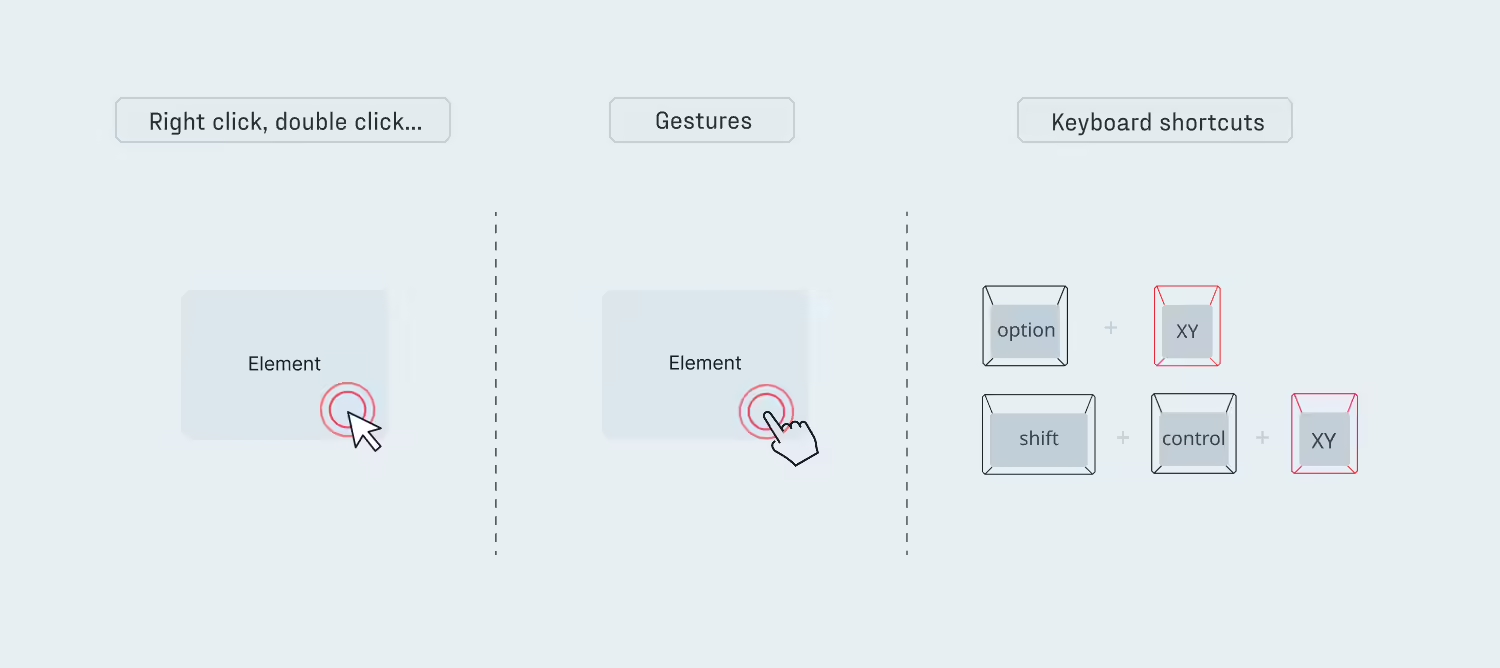
Vendor modelers give you the interaction model they decided on. If you want double-click to open an inline editor, or right-click to show a context menu with deployment options, or shift-drag to initiate a bulk selection – you can only do it if the vendor chose to support that interaction.
However, chances are that the vendor’s decisions do not exactly match your requirements. JointJS provides a rich event system that exposes granular pointer and touch events for every element, link and port on the canvas, and keyboard events for custom shortcuts. You can set up your own behaviors for element right-click, link double-click, port hover, CTRL-ALT-0, and nearly anything else you can think of. At the same time, JointJS also allows you to call preventDefaultInteraction() on the event target to suppress JointJS’s default event behavior and substitute your own. This gives you building blocks to implement exactly the interaction model your specific users need – so that a tool aimed at BPMN experts can embrace keyboard shortcuts for efficiency, while a tool aimed at BPMN novices can prioritize mouse interactions with plenty of hovering tooltips and nested context menus.
Sensible defaults are important – but being able to add, change, or remove interactions as needed for your specific use case gives you the freedom to delight your users.
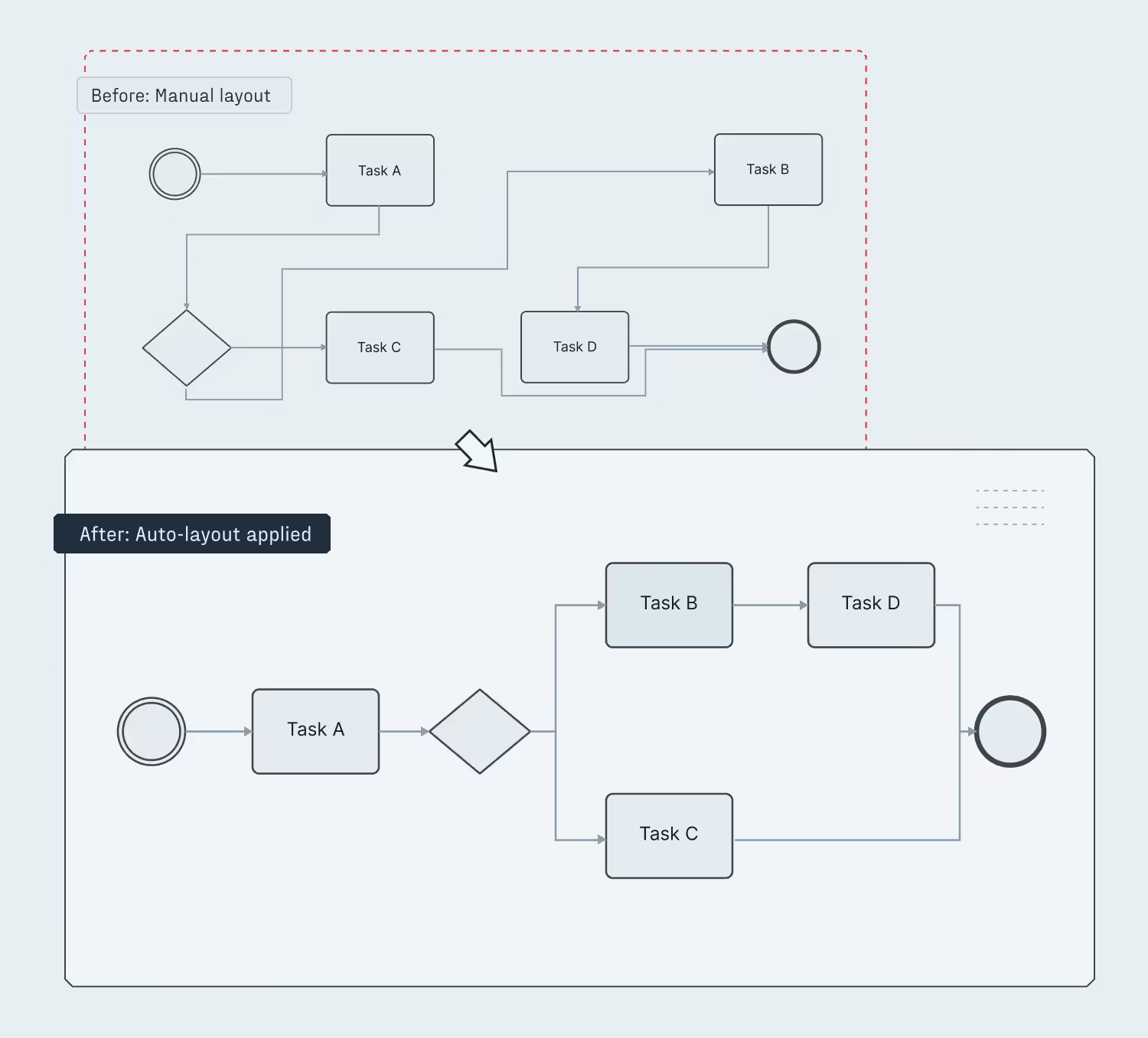
Vendor-provided BPMN modelers typically offer no automatic layout functionality at all, or at best a single rigid “auto-arrange” button that repositions everything into a fixed hierarchy. Users are expected to manually place and align every element – which may be fine for small diagrams, but becomes a significant friction point as the number of interconnected tasks grows. The lack of layout automation means that users have to spend time on visual housekeeping instead of the workflow logic they are trying to model.
JointJS provides a suite of automatic layout algorithms that can be applied programmatically (e.g. when the user presses a button) to the entire graph or to a selected subset of elements, including general-purpose DirectedGraph (powered by Dagre) and MSAGL; TreeLayout, GridLayout and StackLayout for structured arrangements; and ForceDirected for loosely structured graphs. Alternatively, instead of triggering this activity on demand, you may let the layout algorithm handle all positioning and disable free drag-and-drop, and turn your modeler into a connect-the-steps experience for your users.
Automatic layouts reduce the skill floor for your modeler UI – even users who have never drawn a BPMN diagram can produce clean, readable processes on their first try.
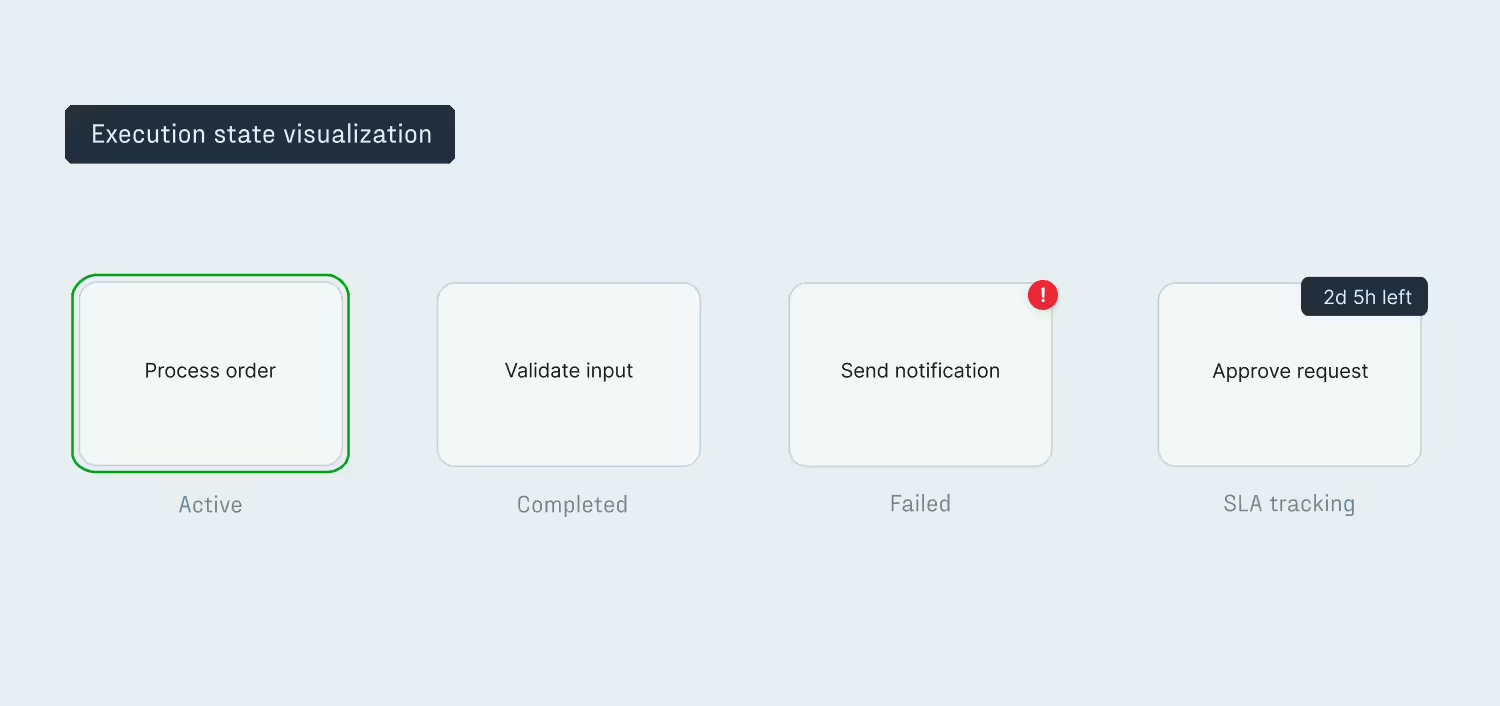
Once a process is deployed and running, your users will want to see if it is running as expected. Vendor platforms handle this in separate monitoring dashboards (Camunda Operate, for example), but that means context-switching away from the modeler, which is not ideal.
In simple situations (e.g. a single deployment of a BPMN diagram, a single execution of a deployment), it may be enough to visualize execution state directly on the process diagram (both real-time token animation and persistent status information), which is where JointJS’s extensible highlighter system comes in handy. Highlighters are views that add visual emphasis to any element or sub-element on the canvas, and they can be manipulated programmatically in response to external information (which may come from querying your execution engine’s REST API, or from any other data source). Built-in highlighters include mask (which adds a stroke around a shape), opacity (which adjusts shape transparency), addClass (which toggles a CSS class), and list (which renders custom SVG elements), and it is also possible to implement your own custom highlighters. These can be activated on demand and composed as necessary – for example, to track the execution status of your process, you could: add a green stroke around an active task, reduce opacity for all completed tasks, and attach an error badge for any failed ones. Alternatively, highlighters can be used to display persistent status information based on extensionElements or custom metadata on shapes (e.g. validation warnings, completed instance counts, SLA compliance indicators).
Vendor-provided solutions typically enforce strict separation between modeling and monitoring UIs, but for simple situations this adds unnecessary overhead. Being able to communicate execution information directly in the diagram lets you design the execution status interfaces around the information your users care about, in the visual language they already understand from the rest of your product.
The features above are the most prominent differentiators, but the advantages of a custom modeler built with JointJS extend further:
Not every team needs a custom BPMN modeler. If you are building internal tooling for a small team of BPMN experts, and your chosen engine’s modeler covers your requirements, then the vendor solution is probably the right call. The investment in a custom modeler pays off when one or more of the following conditions are true:
In each of these cases, JointJS provides the foundation that lets your team focus on the domain-specific layer – shapes, user interaction, and engine integration – rather than reinventing diagramming functionality from scratch.
Vendor-provided BPMN modelers are convenient starting points, but they impose constraints that become increasingly painful as your product matures. Custom BPMN modeler UIs – built on a capable diagramming foundation like JointJS – unlock specific capabilities that vendor tools cannot match: Custom shapes and annotations, curated element palettes, dynamic property editors, tailored interaction models, automatic layouts, and rich execution status displays.
If you want to see what a JointJS-based BPMN modeler looks like in practice, the BPMN Editor demo provides a production-oriented starting point, and the Camunda integration tutorial walks through connecting it to a real execution engine. Between the two, you can go from zero to a fully functional custom modeler – with domain-specific shapes, an engine-aware property panel, and deployment from the toolbar – in days rather than months.
Happy diagramming!


.png)