New Data Modeling application template: Visual database schema designer



Claude Code Playground plugin is fantastic. It allows you to build HTML UI explorers and visualize complex concepts in an intuitive, straightforward way. It gives you visual controls to craft natural-language prompts that work perfectly with AI, and it can even help you build mental models of complex data structures.
But here’s the honest truth. The diagrams you’ll build in Claude Code Playground are solid but quite limited in interactivity. With a proper, dedicated diagramming library, you can make them interactive, more visually appealing, and more intuitive, drastically improving the Playground UI.
In this article, you’ll learn how to enhance Claude Code Playgrounds with JointJS to turn static diagrams into fully interactive visual tools—draggable nodes, smarter routing, animated transitions, and more.
Keep in mind that you can reuse the concepts and ideas shown here whenever you want to bridge text and UI. If you want a better visual way to instruct AI agents, especially when you’re structuring data, designing flows, or tackling complex coding problems, JointJS Claude Playground lets you do exactly that.
Claude Code Playgrounds are great, practical, and useful, but severely limited in handling complex data flows, visualizing data relationships, and creating architecture diagrams.
Here’s an example of a playground generated with Code Map of Claude Code Playground.
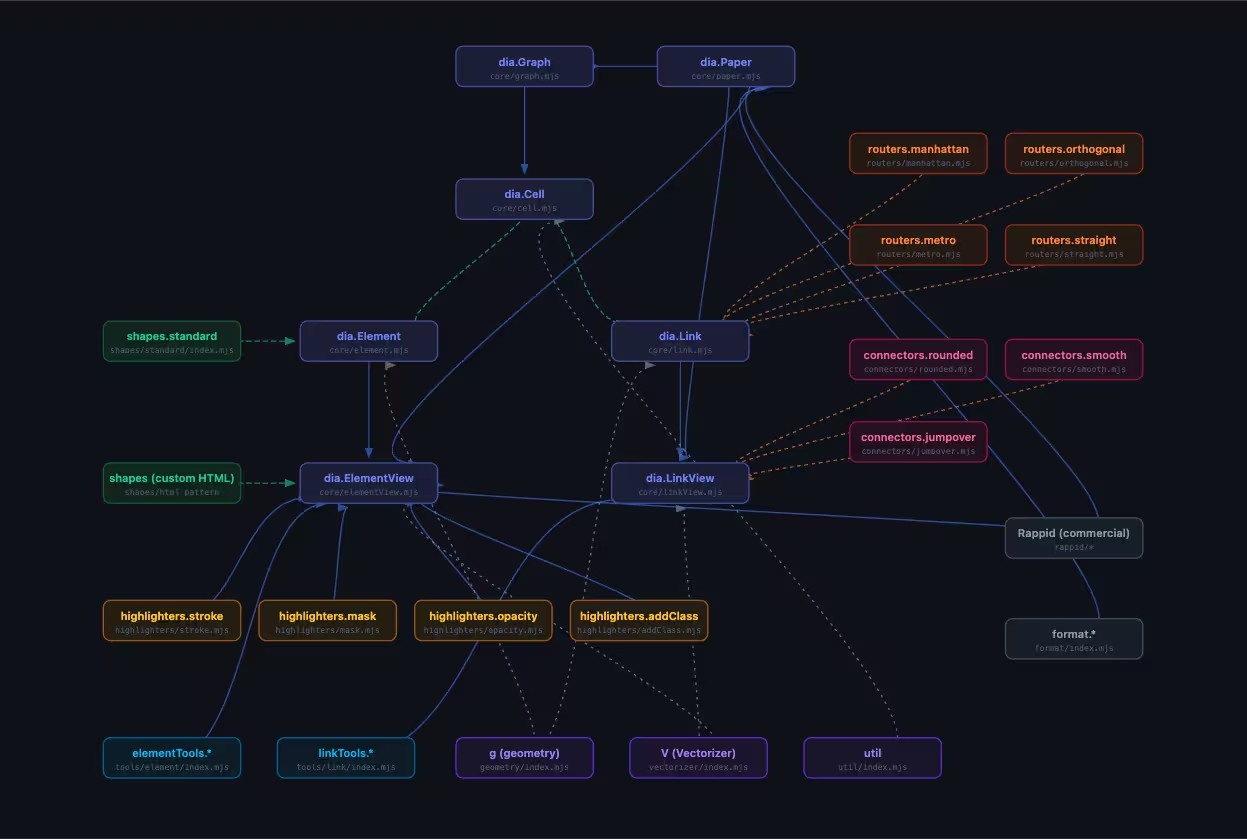
It’s a nice visual overview. You can click nodes, add comments, and zoom in and out. But it’s still not a truly interactive diagram.
You can’t drag a node to reposition it to better fit your use case and understanding. You can’t do anything with links, so when they get tangled and overlapped, you’re stuck with trying to decipher the relations yourself. And this is still a relatively simple diagram, let alone an enterprise-grade one.
But if you enhance this demo with JointJS, you can get a real interactive diagram that’s not only more intuitive but also much more practical.
The generated Code Map is massively improved if we enhance it with JointJS:
The result is still a single HTML file that you can directly open in your browser or share with others. It’s using the open source version of JointJS, so you don’t have to install any dependencies, and there are no build steps—it just works.
To give you all the tools you need to create your own JointJS-enhanced Claude Code Playgrounds, we built a plugin you can use however you want.
Need precise prompts to visualize data structures and user flows? Want a visual SQL, Regex, Cron, or decision-tree builder? Install the JointJS Claude Playground plugin, enter your prompt, and you will get a much better, interactive code playground.
JointJS Claude Playground plugin is available on GitHub. To install it, you’ll need to add JointJS Marketplace (a concept Claude Code uses for third-party plugins) to Claude Code:
/plugin marketplace add https://github.com/clientIO/jointjs-claude-marketplacePlugins from third-party marketplaces, such as JointJS, are not automatically updated, so you’ll need to enable this to always get the latest and best versions, including new features, potential security updates, and bug fixes.
In Claude Code, run /plugin then go into Marketplaces tab, select jointjs marketplace and toggle Enable auto-update command. That way, you will automatically get the latest updates to JointJS plugins.
When you add the JointJS marketplace, install the JointJS Playground Plugin:
/plugin install jointjs-claude-playground@jointjsWhen the installation finishes, run /reload-plugins command to enable the newly installed plugin.
I found /reload-plugins to be unreliable, so you might need to restart Claude Code in your terminal—exit it and launch it again using claude if you don’t see /jointjs after installing and reloading the plugins.
Note that there’s a bug in Claude Code where installing a Claude Code Plugin fails if you don’t have SSH keys configured on your system for GitHub.
When installing a plugin, Claude Code clones the repository via SSH ([email protected]:…), so if your GitHub SSH keys aren’t configured properly, the installation will fail.
Ideally, you should fix your GitHub SSH config, but as a workaround, before Claude Code resolves the problem, you can bypass SSH in your git config—run the following in your terminal:
git config --global url."https://github.com/".insteadOf [email protected]:If you want to learn more about the bug in Claude Code, check the open issue on GitHub: Marketplace plugin cloning should default to HTTPS instead of SSH
Once you verify the plugin is installed, you can start using it. Any prompts that mention “jointjs playground” will trigger it, using JointJS to enhance the diagrams and flowcharts.
Example prompts that will trigger JointJS Claude Playgrounds.
Build a JointJS codemap playground for React.Create an interactive JointJS website map playground of URL-TO-YOUR-WEBSITE.If you specifically want to trigger a specific skill available in the plugin, invoke it manually with the command /jointjs. This will give you an autocomplete list of all available JointJS Claude Playground templates.
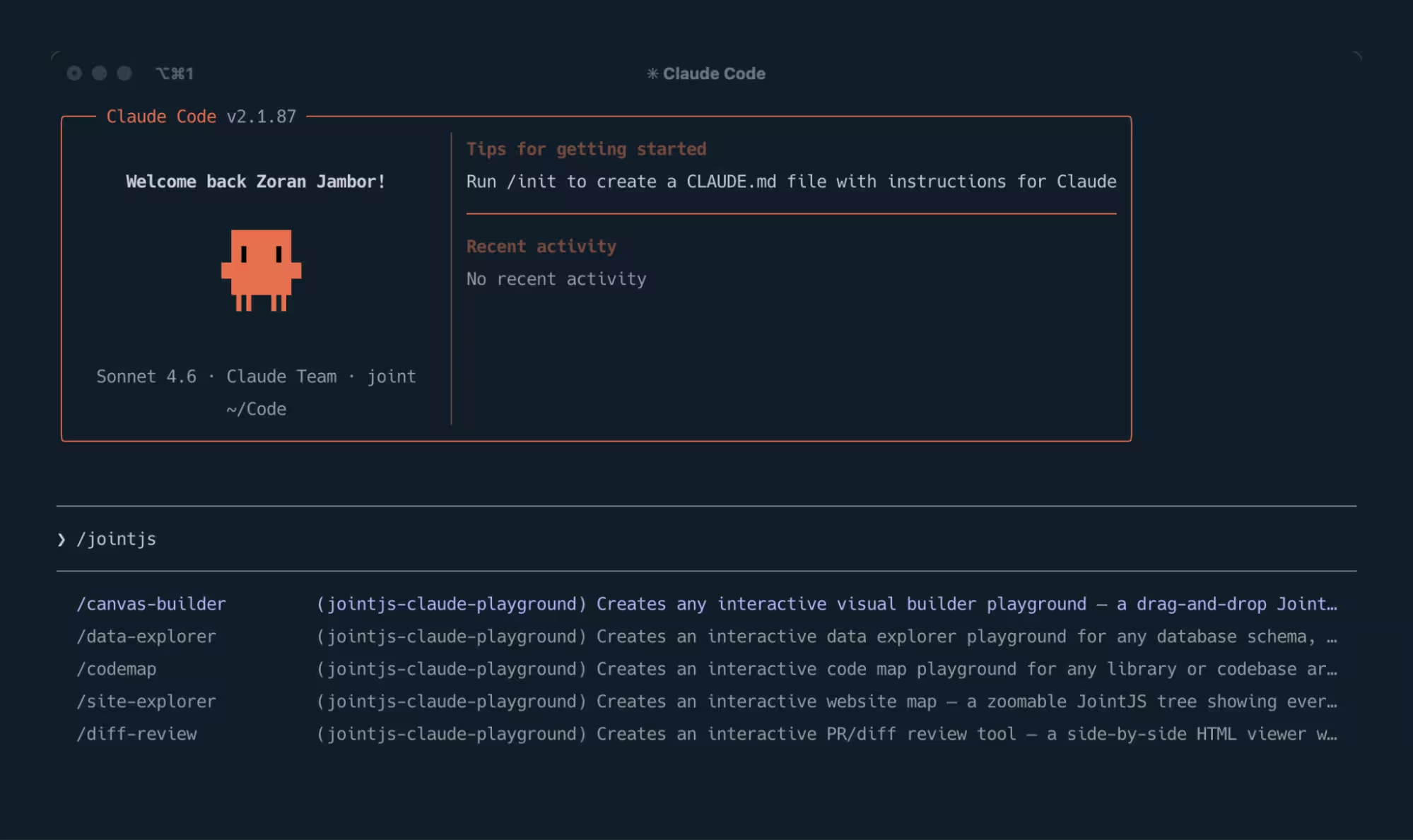
The skills currently available in the JointJS Claude Playground are namespaced to /jointjs, but you can use them directly. If there are any other skills with the same names, you’ll differentiate them by the plugin name in parentheses (jointjs-claude-playground):
/canvas-builder - Creates any interactive visual builder playground./data-explorer - Creates an interactive data explorer playground for any database schema, API data model, or entity-relationship diagram. /codemap - Creates an interactive code map playground for any library or codebase architecture. /site-explorer - Creates an interactive website map. /diff-review - Creates an interactive PR/diff review tool.Note that you don’t have to trigger specific skills manually. Describe what you want, specify that you want to build a JointJS playground, and AI will figure out which precise template to use.
The possibilities, just as with standard Claude Code Playground, are endless, but to give you a few ideas, here’s what we built with the JointJS Claude Playground plugin.
If you want to better understand a codebase, just ask Claude to create a JointJS code map. It uses the /codemap skill to build a clear visualization of the most important concepts of a codebase, with relationships clearly defined, ready for you to explore. You can click any node, add comments, and then copy the prompt to create a custom learning path that will help you better understand the framework.
We’ve also built code maps for Vue.js, Svelte, Express.js, and even JointJS itself, all using the same approach.
Of course, you can apply this to any framework or to your local codebase, even if it’s something completely custom.
You can use the /canvas-builder skill to create a visual builder playground, which allows you to drag-and-drop nodes from a sidebar to build a structured output, ideal for building complex queries easily. You can create a tool for any domain, for SQL, regex, cron expressions, decision trees, API specs, pipelines, and more.
A really practical example is a custom SQL Query Builder that lets you visually build queries by dragging and dropping tables from the sidebar, then connecting their properties to generate an intricate SQL query you can copy with a click of a button.
Another handy use case for the /canvas-builder skill is a custom decision tree.
You can generate visual flowcharts and map out various courses of action, potential outcomes, and their consequences.
We built a few other demos to showcase how much simpler building complex expressions in a JointJS Claude Playground can be:
The possibilities are wide-ranging, and you can easily generate GitHub Actions Builders, State Machine Builders, API Designers, and many more domain‑specific tools.
You can also use JointJS Claude Playground to visualize data architecture and website structures, or to build tools that will help you work through various data challenges, such as massive pull requests or diffs.
You can build interactive website maps to help you visualise your website structure and identify weak points or unintuitive site hierarchies—you should probably fix those if you want to rank better in Google Search or in LLMs.
Keep in mind that you can always plug any skill directly into your projects to build something specifically for your use case.
JointJS Claude Playground comes with a number of predefined skills, but the basis is very flexible, so you can, and should, think outside of the box when it comes to building interesting and useful JointJS Claude Playground.
Unlike the standard Claude Code Playground, the version enhanced with JointJS allows you to create interactive flows and generate output, be it a prompt, code, or query, in a user-friendly, intuitive way.
package.json? Create a Dependency Conflict Resolver that lets you paste a package.json or requirements.txt file, renders the full dependency graph, highlights conflicting version ranges, and provides options to manually pin versions to resolve conflicts.Pro tip: In JointJS Claude Playground, you’re still working with an AI Coding Agent, so you can quickly iterate on features, fix bugs in the generated code, or adapt the playground to new use cases.
If you want to build something custom out of the box, just make sure you mention “jointjs playground” in your prompt, and Claude Code should be able to build an interactive playground leveraging the JointJS library.
All of this is built on the open‑source version of JointJS. If you need advanced, enterprise-level features, JointJS+ gives you even more power.
The Claude Code Playground plugin is great, but somewhat limited when it comes to creating truly interactive visual playgrounds that not only look good but are also more intuitive and usable. So whenever you need an interactive, visual component in the Claude Code Playground you’re building, reach for JointJS to enhance it.
All you need is the JointJS Claude Playground plugin, and you’ll get immediate access to robust skills that will help you make even better playgrounds. Install the JointJS Claude Playground plugin from GitHub, and start your first jointjs playground prompt to see the difference.


.png)