



You’ve installed the JointJS MCP Server and pointed your coding agent at it. (If you haven’t yet, start with our setup guide.) Now the agent has live, accurate JointJS knowledge instead of whatever it might or might not remember from its training data, so the question is what to actually ask it and what your first steps might be.
Here are six prompts to help you see what’s possible and how much better JointJS code you can get. They build on each other, and each one addresses common mistakes agents make when relying only on their training data.
As always, start with the basics, and render something on the screen so you can see it actually working. An AI agent often reaches for an older setup or pulls in dependencies that the latest version (4.2 currently) no longer needs. With the MCP server connected, you should get an optimal setup with the graph/paper wired correctly.
Set up a minimal JointJS canvas using @joint/core: a graph, a paper mounted to a div, and a single rectangle I can drag. Create full files, current 4.2 API only.Result: You should get the correct JointJS package, minimal styling, a paper bound to a container, and a draggable element on screen. It’s the JointJS version of Hello World.
/* package.json */

{
  "name": "jointjs-minimal",
  "private": true,
  "type": "module",
  "scripts": {
    "dev": "vite",
    "build": "vite build"
  },
  "dependencies": {
    "@joint/core": "^4.2.0"
  },
  "devDependencies": {
    "vite": "^5.0.0"
  }
}
<!-- index.html -->

<!DOCTYPE html>
<html lang="en">
  <head>
    <meta charset="UTF-8" />
    <meta name="viewport" content="width=device-width, initial-scale=1.0" />
    <title>JointJS Minimal</title>
    <style>
      * { margin: 0; padding: 0; box-sizing: border-box; }
      body { background: #f0f0f0; display: flex; justify-content: center; align-items: center; height: 100vh; }
      #paper { border: 1px solid #ccc; background: #fff; }
    </style>
  </head>
  <body>
    <div id="paper"></div>
    <script type="module" src="/src/index.js"></script>
  </body>
</html>
// src/index.js

import { dia, shapes } from '@joint/core';

const graph = new dia.Graph({}, { cellNamespace: shapes });

const paper = new dia.Paper({
    el: document.getElementById('paper'),
    model: graph,
    cellViewNamespace: shapes,
    width: 800,
    height: 600,
    gridSize: 10,
    drawGrid: true,
    background: { color: '#fafafa' },
});

const rect = new shapes.standard.Rectangle({
    position: { x: 100, y: 100 },
    size: { width: 160, height: 80 },
    attrs: {
        body: {
            fill: '#4a90d9',
            stroke: '#2c5f8a',
            strokeWidth: 2,
            rx: 4,
            ry: 4,
        },
        label: {
            text: 'Drag me',
            fill: '#ffffff',
            fontSize: 16,
            fontFamily: 'sans-serif',
        },
    },
});

graph.addCell(rect);Ports are a common interface component where agents often hallucinate. You can end up with ports that won’t accept links, ports that are defined roughly without a proper magnet structure (magnet: true instead of magnet: 'passive', for example), and a plethora of other problems.
The next prompt checks how well AI agents understand and use the Ports API.
Take that rectangle and add two input ports on the left and one output port on the right. Then add a second shape and draw a link from the output port to it.

Result: Ports are placed exactly where you want, and the link is connected directly from the output port to another node.
// src/index.js

import { dia, shapes } from '@joint/core';

const graph = new dia.Graph({}, { cellNamespace: shapes });

const paper = new dia.Paper({
    el: document.getElementById('paper'),
    model: graph,
    cellViewNamespace: shapes,
    width: 800,
    height: 600,
    gridSize: 10,
    drawGrid: true,
    background: { color: '#fafafa' },
});

const portMarkup = [{ tagName: 'circle', selector: 'portBody' }];

const rect = new shapes.standard.Rectangle({
    position: { x: 100, y: 200 },
    size: { width: 160, height: 100 },
    attrs: {
        body: {
            fill: '#4a90d9',
            stroke: '#2c5f8a',
            strokeWidth: 2,
            rx: 4,
            ry: 4,
        },
        label: {
            text: 'Node A',
            fill: '#ffffff',
            fontSize: 16,
            fontFamily: 'sans-serif',
        },
    },
    ports: {
        groups: {
            in: {
                position: { name: 'left' },
                markup: portMarkup,
                attrs: {
                    portBody: {
                        magnet: 'passive',
                        r: 6,
                        fill: '#ffffff',
                        stroke: '#2c5f8a',
                        strokeWidth: 2,
                    },
                },
            },
            out: {
                position: { name: 'right' },
                markup: portMarkup,
                attrs: {
                    portBody: {
                        magnet: true,
                        r: 6,
                        fill: '#4a90d9',
                        stroke: '#2c5f8a',
                        strokeWidth: 2,
                    },
                },
            },
        },
        items: [
            { group: 'in',  id: 'in1' },
            { group: 'in',  id: 'in2' },
            { group: 'out', id: 'out1' },
        ],
    },
});

const rect2 = new shapes.standard.Rectangle({
    position: { x: 480, y: 220 },
    size: { width: 160, height: 80 },
    attrs: {
        body: {
            fill: '#50b86c',
            stroke: '#2d7a44',
            strokeWidth: 2,
            rx: 4,
            ry: 4,
        },
        label: {
            text: 'Node B',
            fill: '#ffffff',
            fontSize: 16,
            fontFamily: 'sans-serif',
        },
    },
});

const link = new shapes.standard.Link({
    source: { id: rect.id, port: 'out1' },
    target: { id: rect2.id },
    attrs: {
        line: {
            stroke: '#555',
            strokeWidth: 2,
        },
    },
});

graph.addCells([rect, rect2, link]);Setting up a layout by hand can be tedious and lead to mistakes. Instead of guessing positions or using magic numbers, AI agents should use JointJS layout tools to arrange nodes neatly and automatically.
I have about 20 connected nodes and no coordinates for them. Don't make up x/y positions. Arrange them with a directed layout so the flow reads top-to-bottom.Result: The AI agent should recognize that it needs the @joint/layout-directed-graph package to handle layout automatically.
/* package.json */

{
  "name": "jointjs-minimal",
  "private": true,
  "type": "module",
  "scripts": {
    "dev": "vite",
    "build": "vite build"
  },
  "dependencies": {
    "@joint/core": "^4.2.0",
    "@joint/layout-directed-graph": "^4.2.5"
  },
  "devDependencies": {
    "vite": "^5.0.0"
  }
}
// src/index.js

import { dia, shapes } from '@joint/core';
import { DirectedGraph } from '@joint/layout-directed-graph';

const graph = new dia.Graph({}, { cellNamespace: shapes });

const paper = new dia.Paper({
    el: document.getElementById('paper'),
    model: graph,
    cellViewNamespace: shapes,
    width: 800,
    height: 600,
    gridSize: 10,
    drawGrid: true,
    background: { color: '#fafafa' },
});

// ── Helpers ──────────────────────────────────────────────────────────────────

const portMarkup = [{ tagName: 'circle', selector: 'portBody' }];

function makeNode(id, label) {
    return new shapes.standard.Rectangle({
        id,
        // No position — DirectedGraph.layout() will assign it.
        size: { width: 140, height: 60 },
        attrs: {
            body: {
                fill: '#4a90d9',
                stroke: '#2c5f8a',
                strokeWidth: 2,
                rx: 4,
                ry: 4,
            },
            label: {
                text: label,
                fill: '#ffffff',
                fontSize: 13,
                fontFamily: 'sans-serif',
            },
        },
        ports: {
            groups: {
                in: {
                    position: { name: 'top' },
                    markup: portMarkup,
                    attrs: {
                        portBody: {
                            magnet: 'passive',
                            r: 5,
                            fill: '#fff',
                            stroke: '#2c5f8a',
                            strokeWidth: 2,
                        },
                    },
                },
                out: {
                    position: { name: 'bottom' },
                    markup: portMarkup,
                    attrs: {
                        portBody: {
                            magnet: true,
                            r: 5,
                            fill: '#4a90d9',
                            stroke: '#2c5f8a',
                            strokeWidth: 2,
                        },
                    },
                },
            },
            items: [
                { group: 'in',  id: 'in'  },
                { group: 'out', id: 'out' },
            ],
        },
    });
}

function makeLink(sourceId, targetId) {
    return new shapes.standard.Link({
        source: { id: sourceId, port: 'out' },
        target: { id: targetId, port: 'in'  },
        attrs: {
            line: { stroke: '#555', strokeWidth: 1.5 },
        },
    });
}

// ── Graph definition (replace with your real nodes / edges) ──────────────────

const nodes = [
    makeNode('ingest',    'Ingest'),
    makeNode('validate',  'Validate'),
    /* ... */
];

const links = [
    makeLink('ingest',    'validate'),
    makeLink('validate',  'transform'),
    /* ... */
];

graph.addCells([...nodes, ...links]);

// ── Layout ───────────────────────────────────────────────────────────────────

DirectedGraph.layout(graph, {
    rankDir: 'TB',    // top → bottom
    nodeSep: 40,      // horizontal gap between nodes in the same rank
    rankSep: 60,      // vertical gap between ranks
    edgeSep: 20,
    setVertices: true, // let the layout also route link waypoints
    marginX: 40,
    marginY: 40,
});

paper.fitToContent({ useModelGeometry: true, padding: 40, allowNewOrigin: 'any' });Working with real data is usually where developers start, and it’s a strength worth showing off. The data we’ll use as an example here has the messiness of a real API response (such as extra fields and non-numeric IDs). This prompt checks whether the agent can work with actual data.
Read the nodes and edges from graph-data.json and render them as a JointJS graph. Use each node's `label` for its text, draw the edges as links, and ignore the fields you don't need.Result: Your data should be cleanly presented on the diagram.
/* graph-data.json */

{
  "version": "1.0",
  "generatedAt": "2026-06-22T14:31:07Z",
  "graphId": "wf_order_fulfillment_4471",
  "nodes": [
    {
      "id": "n_8a1f",
      "type": "start",
      "label": "Order received",
      "service": "orders-api",
      "status": "active",
      "updatedAt": "2026-06-22T14:30:55Z"
    },
    {
      "id": "n_3c2d",
      "type": "task",
      "label": "Validate payment",
      "service": "billing-svc",
      "status": "active",
      "durationMs": 420
    },
    {
      "id": "n_6b9e",
      "type": "decision",
      "label": "Payment valid?",
      "service": "billing-svc",
      "status": "active"
    },
    {
      "id": "n_f04a",
      "type": "task",
      "label": "Reserve inventory",
      "service": "inventory-svc",
      "status": "active",
      "durationMs": 380
    },
    {
      "id": "n_22d7",
      "type": "task",
      "label": "Notify customer",
      "service": "notify-svc",
      "status": "idle"
    },
    {
      "id": "n_c510",
      "type": "task",
      "label": "Pack shipment",
      "service": "warehouse",
      "status": "idle",
      "durationMs": 1500
    },
    {
      "id": "n_9ab3",
      "type": "task",
      "label": "Arrange courier",
      "service": "logistics",
      "status": "idle"
    },
    {
      "id": "n_071e",
      "type": "end",
      "label": "Order complete",
      "service": "orders-api",
      "status": "idle"
    }
  ],
  "edges": [
    { "id": "e_01", "source": "n_8a1f", "target": "n_3c2d", "label": "" },
    { "id": "e_02", "source": "n_3c2d", "target": "n_6b9e", "label": "" },
    { "id": "e_03", "source": "n_6b9e", "target": "n_f04a", "label": "yes" },
    { "id": "e_04", "source": "n_6b9e", "target": "n_22d7", "label": "no" },
    { "id": "e_05", "source": "n_f04a", "target": "n_c510", "label": "" },
    { "id": "e_06", "source": "n_c510", "target": "n_9ab3", "label": "" },
    { "id": "e_07", "source": "n_9ab3", "target": "n_071e", "label": "" }
  ]
}
// src/index.js

import { dia, shapes } from '@joint/core';
import { DirectedGraph } from '@joint/layout-directed-graph';
import graphData from '../graph-data.json';

const graph = new dia.Graph({}, { cellNamespace: shapes });

const paper = new dia.Paper({
    el: document.getElementById('paper'),
    model: graph,
    cellViewNamespace: shapes,
    width: 800,
    height: 600,
    gridSize: 10,
    drawGrid: true,
    background: { color: '#fafafa' },
});

// ── Color by node type ───────────────────────────────────────────────────────

const TYPE_STYLE = {
    start:    { fill: '#50b86c', stroke: '#2d7a44' },
    end:      { fill: '#e05252', stroke: '#9b2c2c' },
    decision: { fill: '#f5a623', stroke: '#b07718' },
    task:     { fill: '#4a90d9', stroke: '#2c5f8a' },
};

// ── Build elements ────────────────────────────────────────────────────────────

const elements = graphData.nodes.map((node) => {
    const { fill, stroke } = TYPE_STYLE[node.type] ?? TYPE_STYLE.task;
    return new shapes.standard.Rectangle({
        id: node.id,
        size: { width: 150, height: 56 },
        attrs: {
            body: { fill, stroke, strokeWidth: 2, rx: 4, ry: 4 },
            label: {
                text: node.label,
                fill: '#ffffff',
                fontSize: 13,
                fontFamily: 'sans-serif',
                textWrap: { width: -16, maxLineCount: 2 },
            },
        },
    });
});

// ── Build links ───────────────────────────────────────────────────────────────

const links = graphData.edges.map((edge) => {
    const link = new shapes.standard.Link({
        id: edge.id,
        source: { id: edge.source },
        target: { id: edge.target },
        attrs: {
            line: { stroke: '#666', strokeWidth: 1.5 },
        },
    });

    if (edge.label) {
        link.appendLabel({
            attrs: {
                text: { text: edge.label, fontSize: 11, fontFamily: 'sans-serif', fill: '#333' },
                rect: { fill: '#fafafa', stroke: '#ccc', strokeWidth: 1, rx: 3 },
            },
        });
    }

    return link;
});

// ── Layout ────────────────────────────────────────────────────────────────────

graph.addCells([...elements, ...links]);

DirectedGraph.layout(graph, {
    rankDir: 'TB',
    nodeSep: 50,
    rankSep: 60,
    setVertices: true,
    marginX: 40,
    marginY: 40,
});

paper.fitToContent({ useModelGeometry: true, padding: 40, allowNewOrigin: 'any' });Sooner or later, your diagram will need a shape that isn’t a plain rectangle, and setting up custom markup and attributes can be tricky. This prompt checks that the agent defines a proper, reusable shape rather than faking it with absolutely positioned HTML overlaid on the paper.
Create a custom node that shows a title, a subtitle, and a small status dot whose color I can set per node. Keep it as a reusable shape definition.
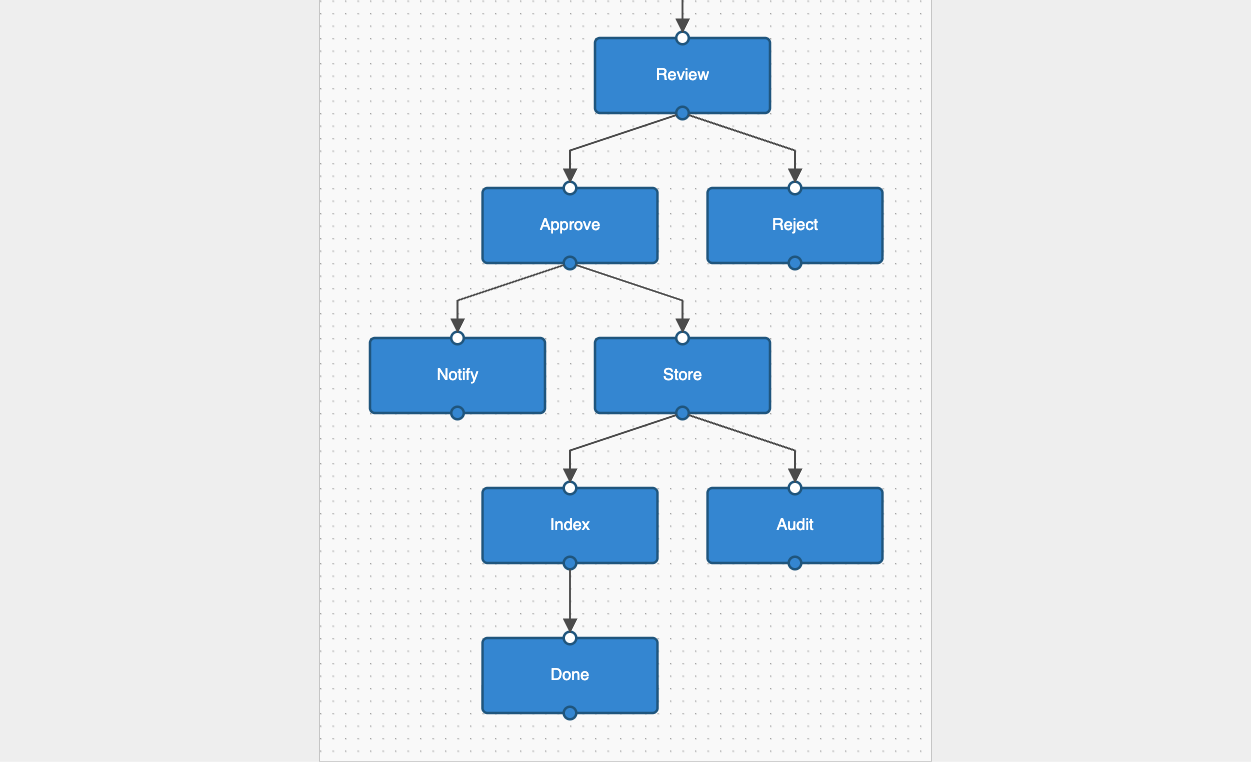
Result: You should get a reusable element with a title, subtitle, and a status indicator you can change for each instance.
// src/index.js

import { dia, shapes } from '@joint/core';
import { DirectedGraph } from '@joint/layout-directed-graph';
import { StatusNode } from './StatusNode.js';
import graphData from '../graph-data.json';

// Register the custom shape so JointJS can resolve it by type string.
// Namespaced as 'app.StatusNode' → cellNamespace.app.StatusNode
const cellNamespace = { ...shapes, app: { StatusNode } };

const graph = new dia.Graph({}, { cellNamespace });

const paper = new dia.Paper({
    el: document.getElementById('paper'),
    model: graph,
    cellViewNamespace: cellNamespace,
    width: 800,
    height: 600,
    gridSize: 10,
    drawGrid: true,
    background: { color: '#fafafa' },
});

// ── Status → dot colour ───────────────────────────────────────────────────────

const STATUS_COLOR = {
    active:  '#50b86c',
    idle:    '#aaaaaa',
    error:   '#e05252',
    warning: '#f5a623',
};

// ── Build elements from JSON ──────────────────────────────────────────────────

const elements = graphData.nodes.map((node) => new StatusNode({
    id: node.id,
    attrs: {
        title:     { text: node.label },
        subtitle:  { text: node.service ?? '' },
        statusDot: { fill: STATUS_COLOR[node.status] ?? STATUS_COLOR.idle },
    },
}));

// ── Build links from JSON ─────────────────────────────────────────────────────

const links = graphData.edges.map((edge) => {
    const link = new shapes.standard.Link({
        id: edge.id,
        source: { id: edge.source },
        target: { id: edge.target },
        attrs: { line: { stroke: '#666', strokeWidth: 1.5 } },
    });

    if (edge.label) {
        link.appendLabel({
            attrs: {
                text: { text: edge.label, fontSize: 11, fontFamily: 'sans-serif', fill: '#333' },
                rect: { fill: '#fafafa', stroke: '#ccc', strokeWidth: 1, rx: 3 },
            },
        });
    }

    return link;
});

// ── Layout ────────────────────────────────────────────────────────────────────

graph.addCells([...elements, ...links]);

DirectedGraph.layout(graph, {
    rankDir: 'TB',
    nodeSep: 50,
    rankSep: 60,
    setVertices: true,
    marginX: 40,
    marginY: 40,
});

paper.fitToContent({ useModelGeometry: true, padding: 40, allowNewOrigin: 'any' });Finally, you can use AI coding agents to improve the diagram design, making it look modern, more user-friendly, and even more accessible.
Now restyle the whole graph to look polished and modern in dark theme: a restrained, cohesive color palette, a clear type hierarchy, generous spacing and padding in elements and link labels, rounded nodes with subtle depth, clean links, and highlight the active box.

Use CSS classes for the static theme and the cell `attrs` for anything data-driven (like a per-node status color); don't position HTML on top of the paper. Make papar 100% of the screen at most, allow panning and zooming, and center the diagram on load.
This prompt will check whether the AI Agent understands JointJS styling principles and which layer (SVG or CSS) the styling you want to apply belongs to.

Result: The diagram should be clean, while panning and zooming work flawlessly, confirming there is no hand-placed HTML sitting on top of the paper.
Live demo: https://changelog.jointjs.com/gallery/mcp-starting-prompts/
Additionally, you can ask the agent to explain its choices, which can serve as a quick test of whether the agent gets this distinction between CSS and SVG layers right.
In my test runs, the prompts with JointJS MCP Server generated much better, clearer results with no missed APIs or antipatterns in the code. In the long term, this means better maintainability, less debugging, and less digging into docs to understand what you should be doing.
If you’re working on a team, you can commit the MCP config to your repo so everyone shares the same setup.
Happy diagramming!


.png)







.jpg)

