New Data Modeling application template: Visual database schema designer



Claude Code offers an easy way to share the MCP server setup with your team through a JSON file you can commit to your repository.
Claude Code offers three different MCP installation scopes, which give you fine-tuned control over which MCP servers will load when you enter Claude Code.
We just launched the JointJS MCP Server, and I’ll use it as an example in the rest of the article.
By default, the MCP servers you install will be added to a local directory where you run the command.
On the JointJS MCP Server example:
claude mcp add jointjs --transport http https://mcp.jointjs.com/mcp
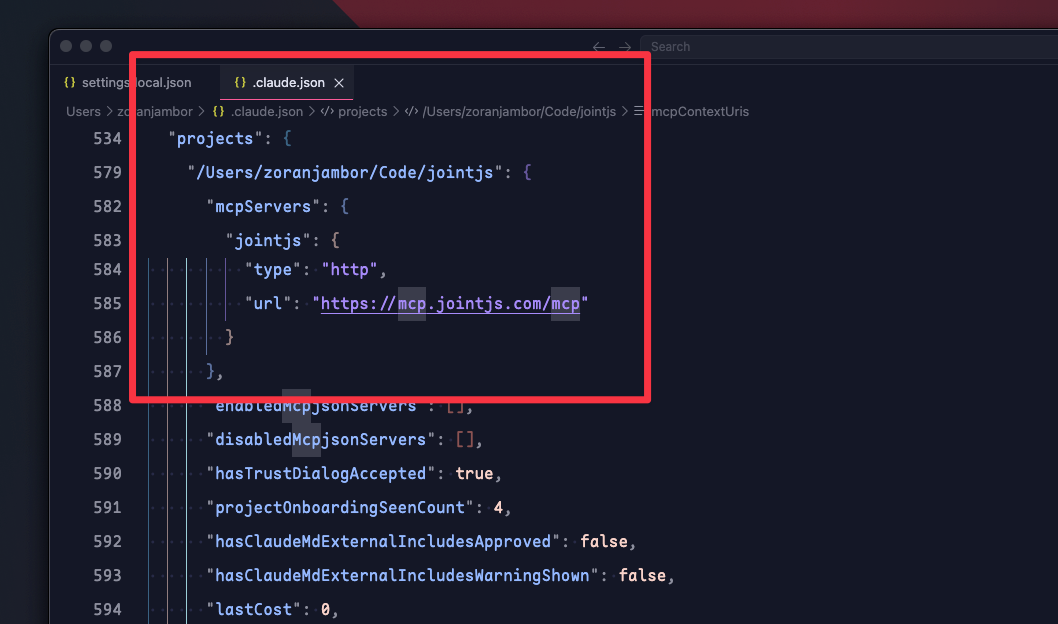
Once you add an MCP Server, it will be available in the local directory, with config for it being written in your ~/.claude.json file in your user directory:
Alternatively, you can install it in the user scope if you add the flag --scope user to the install command.
On the JointJS MCP Server example:
claude mcp add jointjs --transport http https://mcp.jointjs.com/mcp --scope user
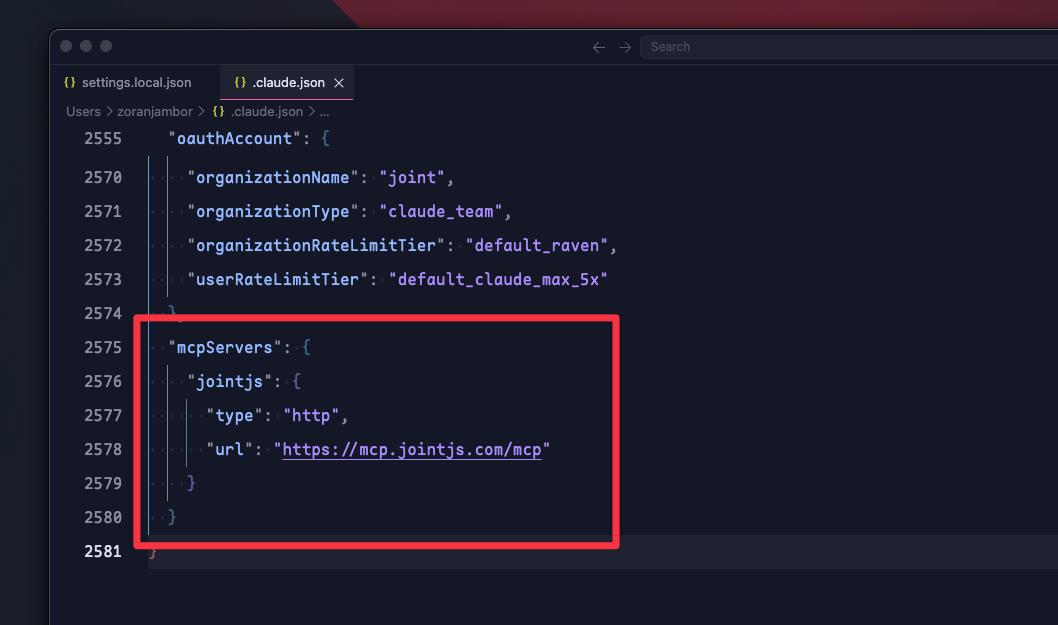
In this case, the MCP server will always be available when you enter Claude Code, and the config will be added to the top level of ~/.claude.json in the user directory:
But as the MCP servers are usually connected to the project architecture, it’s more than likely that you want to share your mcpServers configuration. Claude Code gives you an easy option to do this via a JSON file you can commit to your repository. This way, any team member who runs Claude Code in the project directory will automatically get access to the MCP servers listed in the file.
On the JointJS MCP Server example:
claude mcp add jointjs --transport http https://mcp.jointjs.com/mcp --scope project
This command will create a .mcp.json file in the current directory, which will look like this:
{
	"mcpServers": {
		"jointjs": {
      		"type": "http",
			"url": "https://mcp.jointjs.com/mcp"
		}
	}
}
You can also create the file manually, and easily extend it with more MCP servers by adding them to the mcpServers object directly:
{
	"mcpServers": {
		"jointjs": {
			"type": "http",
			"url": "https://mcp.jointjs.com/mcp"
		},
		"chrome-devtools": {
			"command": "npx",
			"args": ["-y", "chrome-devtools-mcp@latest"]
		}
	}
}
When you enter Claude Code for the first time while the .mcp.json is present, it’ll reacquire your approval:
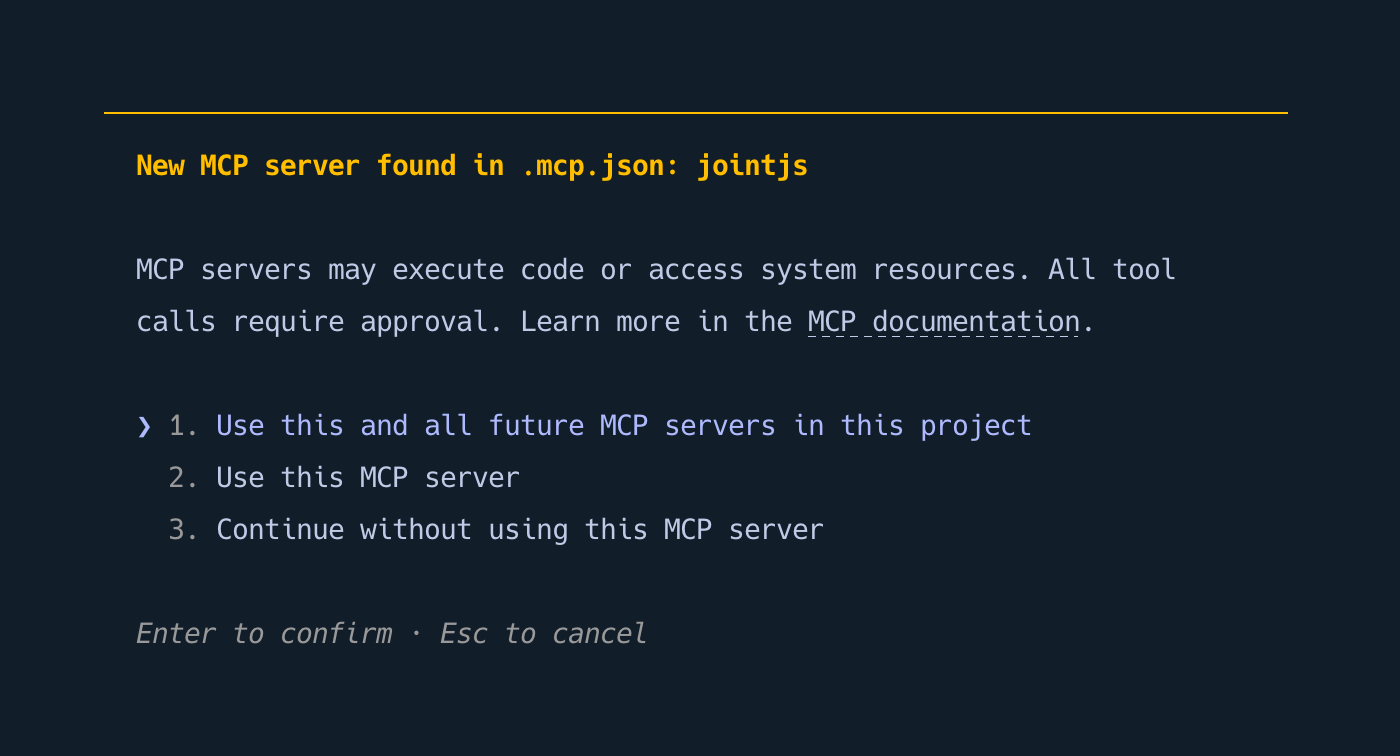
Every time you enter Claude Code, all MCP servers from the list will be automatically connected, allowing your team to share the productive setup effortlessly.
You can install MCP Servers in a local scope, user scope, or project scope via a .mcp.json file.
For testing, install the MCP servers in the local/directory scope. For MCP servers you use often and are not specifically related to an app architecture, use the global/user scope (--scope user), and for project-specific MCP Servers, use the .mcp.json file, which you’ll commit to the repository to make it available for anyone who uses the project.
Happy diagramming!


.png)