
Tournament Studio is a small side project that demonstrates how quickly this kind of highly interactive visual app can be built with JointJS. The drag & drop group-stage builder and the knockout bracket are both powered by JointJS, and the whole thing is a single-page app: no framework, no router, no state library, just a single file (main.js) at about 3,400 lines.
It’s designed with football in mind, but you can use it for any sport, from basketball, tennis, hockey, and it’s especially useful for school tournaments.
1. Enter the Tournament Name and participants, then select the number of groups and hit the “Build Group Stage” button.
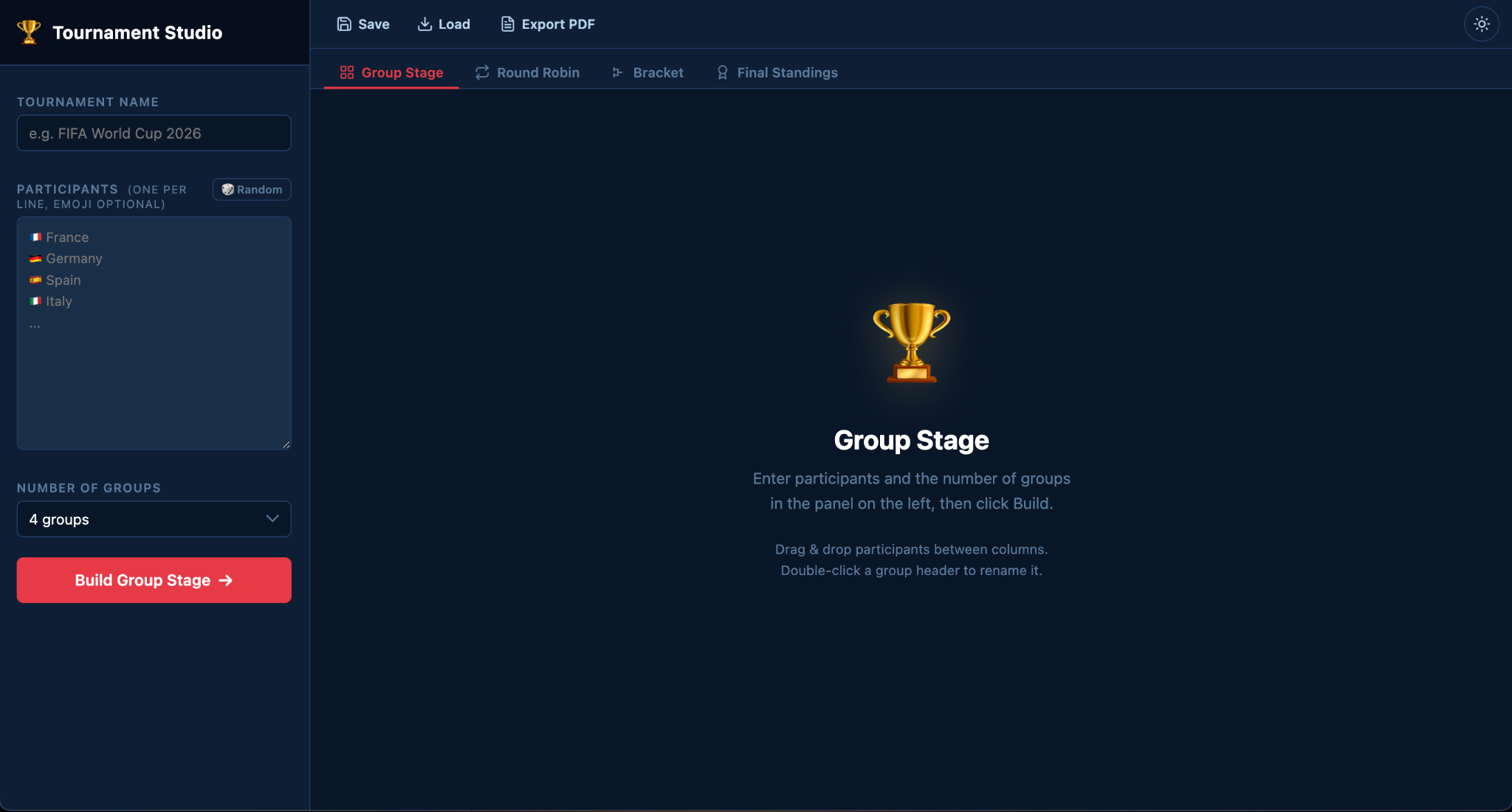
2. Drag team cards from pool columns into groups or choose Random Distribution, then hit the “Enter Match Results” button.
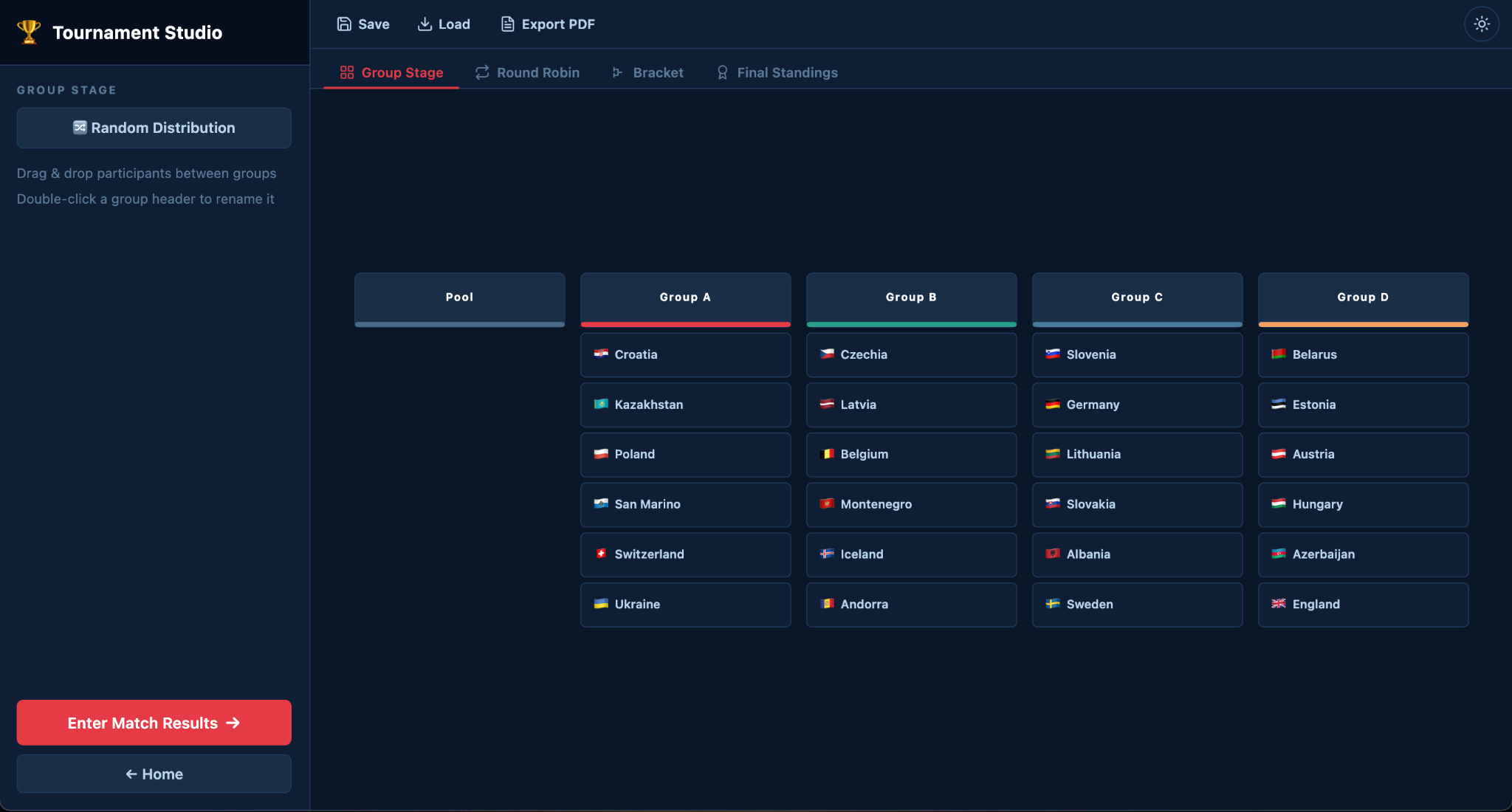
3. Tweak the Round Robin settings (rounds, points, participants advancing), enter match results (or simulate them for fun), then build the knockout bracket based on those results by hitting the “Build Bracket” button.
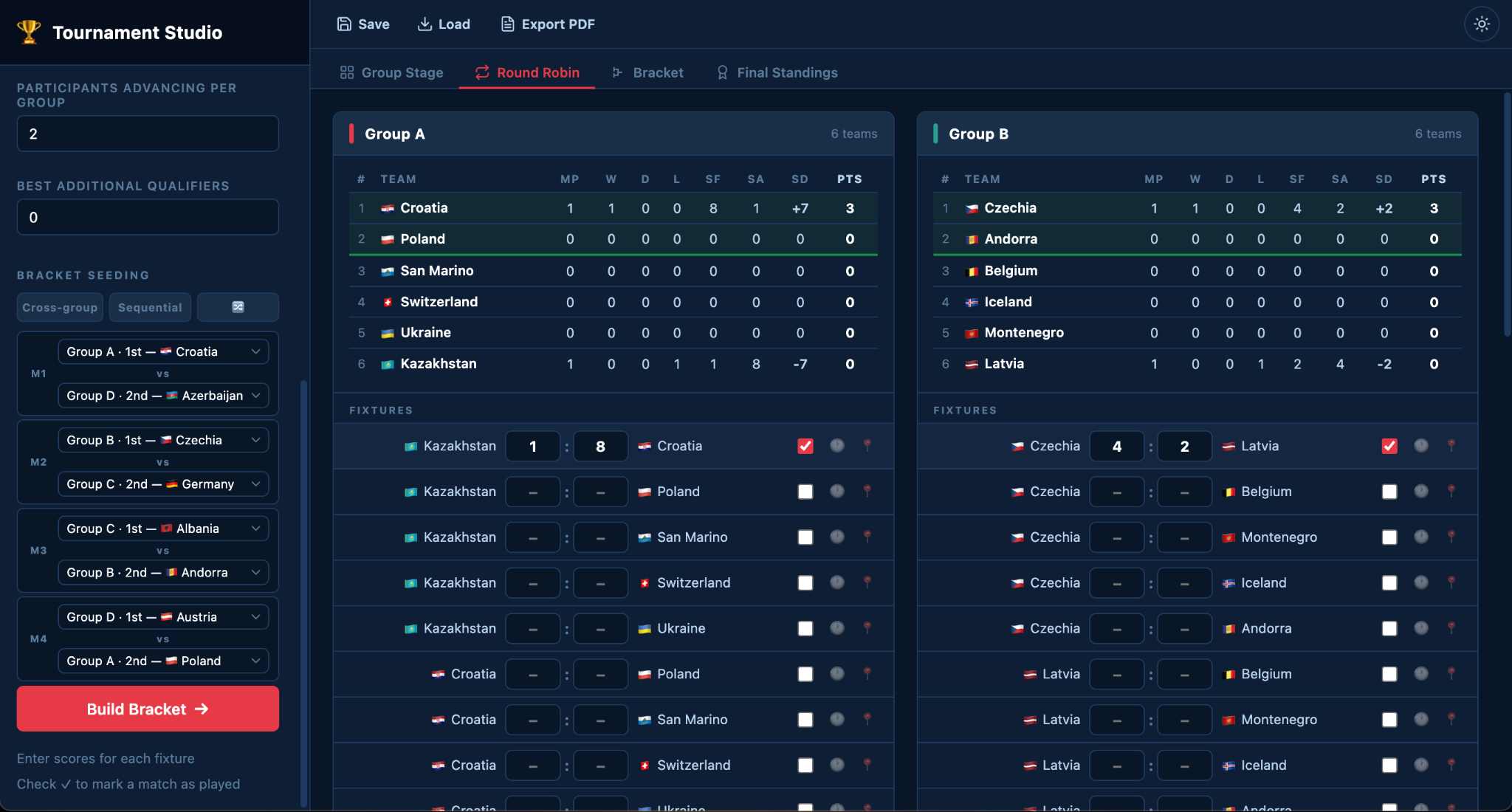
4. Enter the knockout results and see a nicely designed table of team standings by opening the “Final Standings” tab in the toolbar.
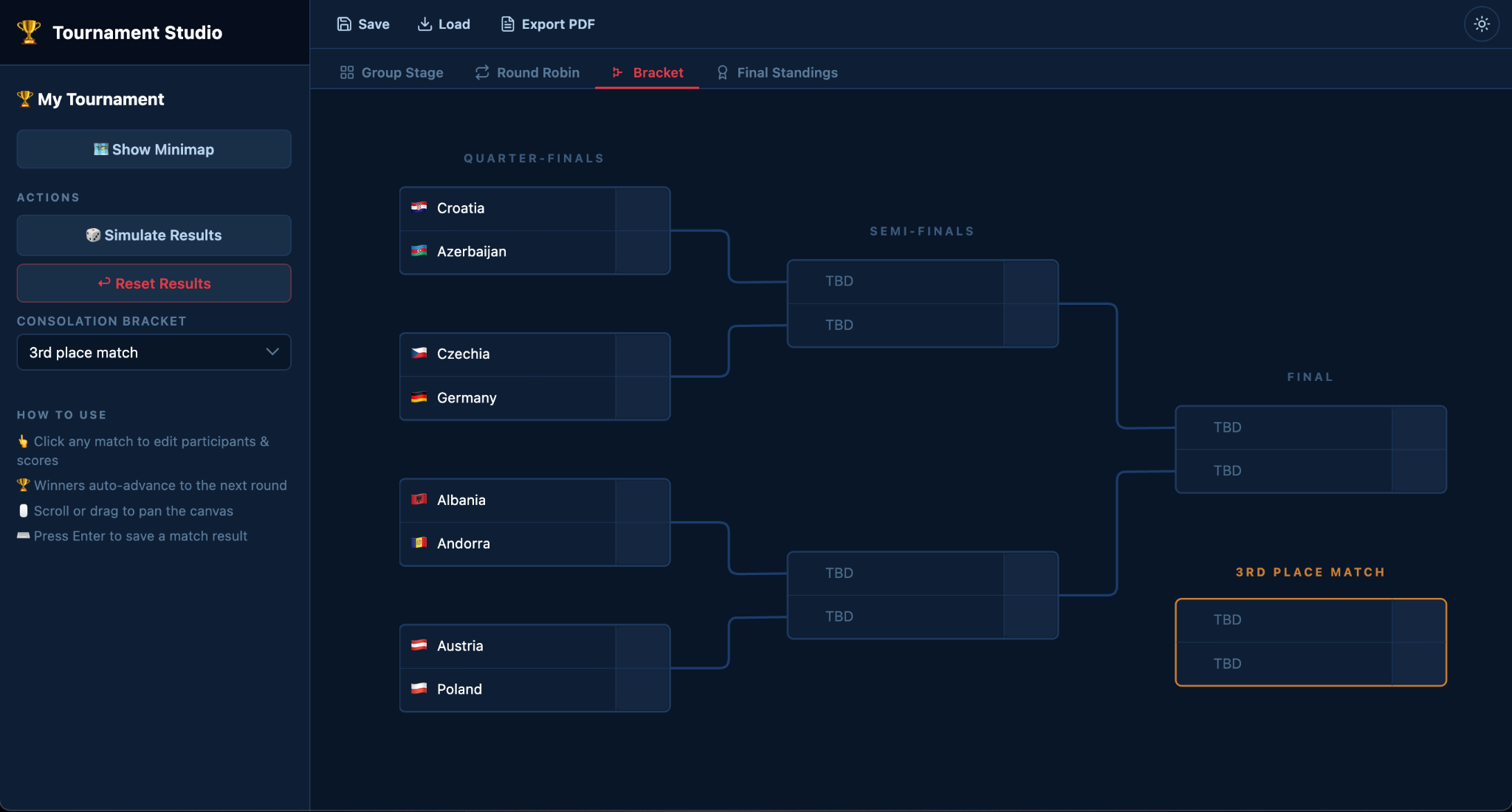
Hit the “Export PDF” button in the toolbar at any point to get the current tournament stated (bracket and/or standings) ready for print.
The app was vibe-coded with Claude Code, and what follows are interesting code patterns and tips you may find useful in your own JointJS applications.
The match card extends the basic model for diagram elements, dia.Element. The interesting thing isn’t its markup, but the flow of data.
The match state (team1, team2, winner, played) is set directly in the model. A single private method, _syncAttrs(), translates this state to presentation, while the initialize() hook makes it run automatically on any state change:
class MatchElement extends dia.Element {
  defaults() {
    return {
      ...super.defaults,
      type: 'MatchElement',

      // domain state — distinct from SVG attrs:
      team1: { name: 'TBD', score: 0 },
      team2: { name: 'TBD', score: 0 },
      winner: 0,
      played: false,
    };
  }
  initialize(...args) {
    super.initialize(...args);
    this.on('change:team1 change:team2 change:winner change:played', () => this._syncAttrs());
    this._syncAttrs();
  }
  _syncAttrs() {
    const winner = this.get('winner');
    const played = this.get('played');
    this.attr({
      winBg1: { fill: winner === 1 ? C.winBg : 'transparent' },
      score1: { text: played ? String(this.get('team1').score) : '' },

      // ...same shape for team 2, plus border/name colors
    });
  }
}
With this setup, when you set the result on the element el.set({ team1, team2, winner, played: true }), the card repaints itself, the “winner” highlight appears, and the score text fills in.
This is the single most useful pattern to internalize when building with JointJS: keep your domain state on the model, or alternatively on the graph itself, and your visuals as a pure function of that state, then let change:* events bridge the two.
The app has a dark/light toggle that recolors the whole UI. The color scheme lives in a single object (C), so switching the theme mutates the object and then runs _syncAttrs() on each element.
const THEMES = {
  dark: { bg: '#0a1628', surface: '#0f1e33' /* ... */ },
  light: { bg: '#eef2f7', surface: '#ffffff' /* ... */ },
};

// C is the live palette — everything in the app reads from this.
const C = { ...THEMES.light };

function applyTheme(name) {
  Object.assign(C, THEMES[name]); // 1. change the palette
  paper.drawBackground({ color: C.bg }); // 2. update paper background
  graph.getElements().forEach((el) => {
    // 3. ask every shape to re-sync
    if (el.get('type') === 'MatchElement') el._syncAttrs();
  });
}
Not that you can’t just set a fill once in defaults(), as the theme-switching won’t update it. That’s why all colors need to be applied inside _syncAttrs().
The bracket and the group stage are both JointJS papers, but their layout strategies couldn’t be more different.
The knockout bracket is fixed and hand-computed. Each round’s matches need to be aligned with the pair of matches before (single-elimination geometry).
const spacing = BASE_SPACING * Math.pow(2, round);   // BASE_SPACING = MATCH_H + BASE_V_GAP = 124
const x = round * (MATCH_W + ROUND_GAP);
const y = spacing / 2 - MATCH_H / 2 + index * spacing;
Links between matches use JointJS’s rightAngle router with the rounded connector set on the paper:
defaultRouter:    { name: 'rightAngle', args: { padding: 16, maximumLoops: 2000 } },
defaultConnector: { name: 'rounded',    args: { radius: 8 } },
The group stage, on the other hand, is interactive. The user can drag team cards between the Pool and Group columns, and the columns are stacked vertically. That’s handled by the StackLayoutView feature of JointJS+. Team cards are automatically rearranged into stacks.
gsLayoutView = new ui.StackLayoutView({
  paper: gsPaper,
  layoutOptions: {
    direction: layout.StackLayout.Directions.TopBottom,
    stackCount: columns.length,
    // ...sizing options omitted
    setAttributes: (el, { position }) => {
      // Auto-reflow shouldn't fill the undo history.
      el.set('position', position, { ignoreCommandManager: true });
    },
  },
  // Group-header rectangles stay fixed; only team cards are draggable.
  canInteract: (elementView) => elementView.model.get('type') === 'TeamCard',
});
Without the ignoreCommandManager: true flag, every auto-reflow during a drag would pollute the undo history. The canInteract option of StackLayoutView keeps the group header rectangles fixed, but the team cards remain draggable.
Tournament Studio uses JointJS+ features PaperScroller for pan/zoom, and Navigator for a minimap. Both have one-line gotchas worth highlighting:
The Paper needs numeric width/height when wrapped in PaperScroller. Percentage values like '100%' throw a runtime error (PaperScroller: paper dimension must be a number). Note that PaperScroller automatically resizes the wrapped paper to fit all its content using the autoResizePaper option.
paper = new dia.Paper({
  model: graph,
  width: 1000, // numeric, not '100%'
  height: 1000,
  // ...
});

scroller = new ui.PaperScroller({ paper, el: container, autoResizePaper: true });
scroller.render();
The Navigator needs useContentBBox: true if you want it to show the content of the paper rather than the entire scrollable area.
navigator = new ui.Navigator({
  paperScroller: scroller,
  useContentBBox: true, // ← frame the content, not paper origin
  paperOptions: {
    /* ... */
  },
});
Both match cards and bracket canvas are interactive. Clicking a match opens the card to edit the score, and clicking and dragging pans the canvas. As both gestures start on the pointerdown event, we need a threshold to understand if a drag or a click happened.
const panState = { active: false, moved: false, panned: false };

document.addEventListener('mousemove', (e) => {
  if (!panState.active) return;
  const dx = e.clientX - panState.startX;
  const dy = e.clientY - panState.startY;

  // 3 px → start scrolling. Low threshold keeps panning responsive.
  if (!panState.moved && (Math.abs(dx) > 3 || Math.abs(dy) > 3)) {
    panState.moved = true;
  }

  if (panState.moved) {
    scroller.el.scrollLeft = panState.scrollLeft - dx;
    scroller.el.scrollTop = panState.scrollTop - dy;
    // 8 px → this was definitely a drag; suppress the upcoming click.
    if (Math.abs(dx) > 8 || Math.abs(dy) > 8) panState.panned = true;
  }
});

paper.on('element:pointerclick', (view) => {
  if (!panState.panned) openMatchDialog(view.model.id);
});
The two thresholds are needed because the trackpad clicks jitter. A “click” on a trackpad isn’t a single point, but a 3–5 pixel drift between press and release. That’s why a single 3-pixel threshold would make panning feel responsive, but breaks clicks (the user has to click twice). On the other hand, a single 8-pixel threshold would keep clicks reliable but make panning feel sluggish (the canvas only starts moving after a noticeable drag).
The two-threshold version allows the scroll to start at 3px (motion is visible immediately), but the click guard only fires past 8px (real intentional drags).
The paper itself also needs clickThreshold: 10, which means that when mouse movement passes the threshold, the pointerclick event will not be triggered after mouseup.
Tournament brackets are often printed, pinned to a wall, marked up by hand, and so on, and that’s why the Tournament Studio has a “Export PDF / Print” button that turns the entire live tournament state, from group standings, fixtures, knockout brackets, to final standings, into a single printable document.
The app collects the live match state into plain data and renders it as a clean HTML report in a fresh window:
function exportToPDF() {
  // Open synchronously — popup blockers kill window.open inside async callbacks.
  const win = window.open('', '_blank');
  writePrintWindow(win, collectBracketMatchList());
}

// Walk the graph, return plain data — no JointJS objects past this point.
function collectBracketMatchList() {
  return graph
    .getElements()
    .filter((el) => el.get('type') === 'MatchElement')
    .map((el) => ({
      t1name: el.get('team1').name,
      t2name: el.get('team2').name,
      s1: el.get('played') ? el.get('team1').score : '',
      s2: el.get('played') ? el.get('team2').score : '',
      winner: el.get('winner'),
    }));
}
A separate method then produces a complete tournament report: title, group standings with advancing teams highlighted, the fixture list per group, the full bracket as a clean four-column table (Round | Home | Score | Away), and a final standings table. The print stylesheet uses page-break-inside: avoid on each group card so they never split across pages.
This app is a nice example of how easy it can be to build a practical, useful tool with JointJS and AI agents. You can find it at https://tournament-studio.apps.jointjs.com/.
Try it for your local kids' tournament, or any contest you’d otherwise track on paper. It will work even with major sporting events such as the upcoming World Cup. (Grab the JSON to import World Cup 2026 here.)
Happy diagramming!


.png)