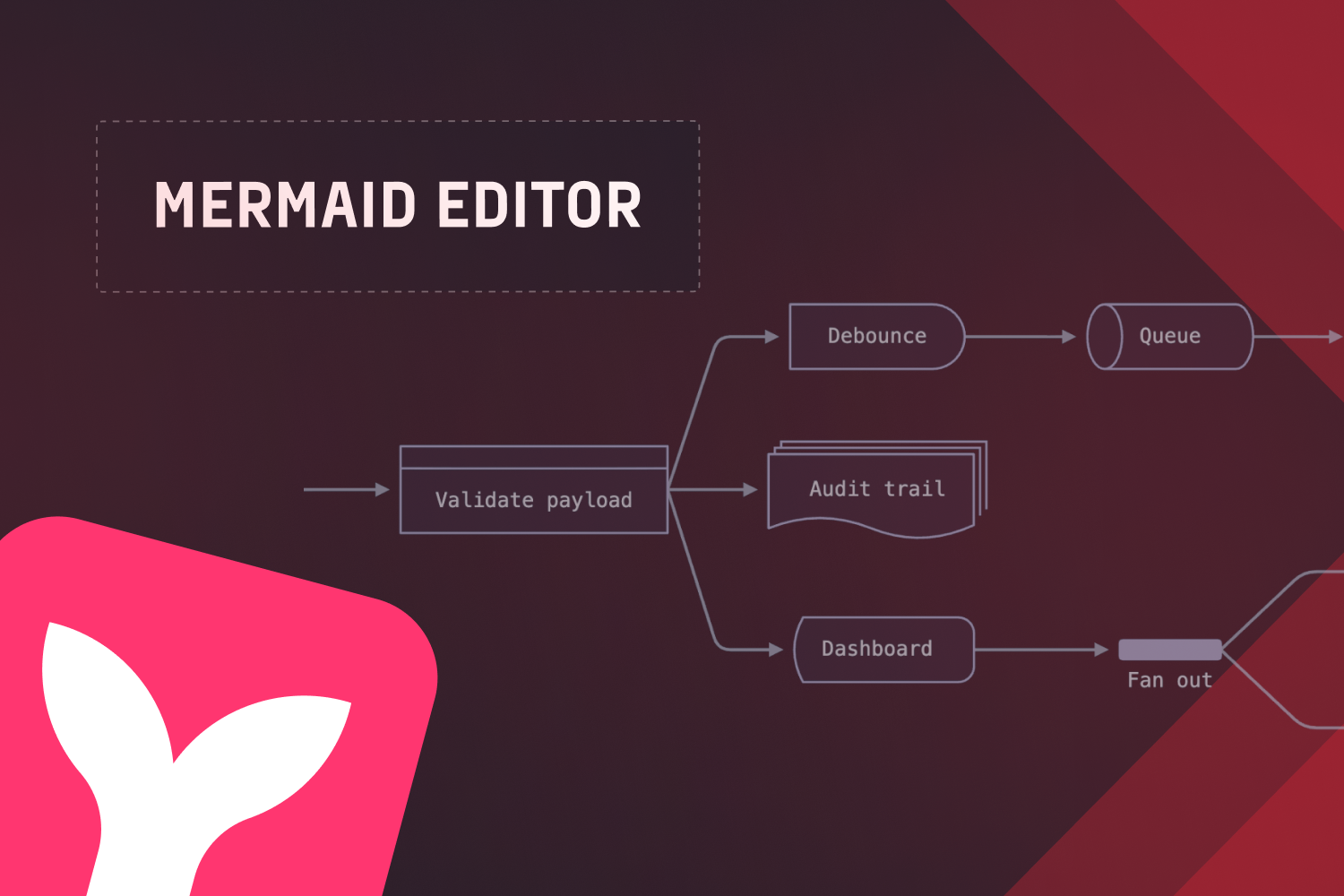

Mermaid has effectively become the standard for diagrams as code. You write a flowchart like A --> B in Markdown, GitHub renders it, and it lives in version control next to your code. Mermaid diagrams are in READMEs, docs sites, and wikis, and increasingly the output across almost all major AI platforms for generating text-based diagrams. All of this makes Mermaid the obvious format for any product that displays diagrams, and the next step for those products is a visual Mermaid editor that lets users change a diagram by clicking on it instead of learning the syntax.
But Mermaid diagrams integrated into products can quickly show their limits. The output is a static SVG; users can’t click a node to rename it or restyle an arrow without learning the syntax. Just as well, a typical visual editor built on top keeps its own copy of the diagram, separate from the Mermaid text. When you edit the diagram, the text becomes out of date. If you edit the text, the diagram is no longer accurate. Teams building docs platforms, wikis, low-code tools, and AI assistants often realize that Mermaid is great, but the editing experience isn't.
To close that gap, we built the Mermaid Editor app template with JointJS, a diagramming library for building visual editors in JavaScript and React. It reads Mermaid with Mermaid’s own parser, renders it as a live, editable diagram, and writes every canvas change back into the text.
In this article, you’ll see what the JointJS Mermaid Editor does, the patterns behind it, and how to embed it in your own React app.
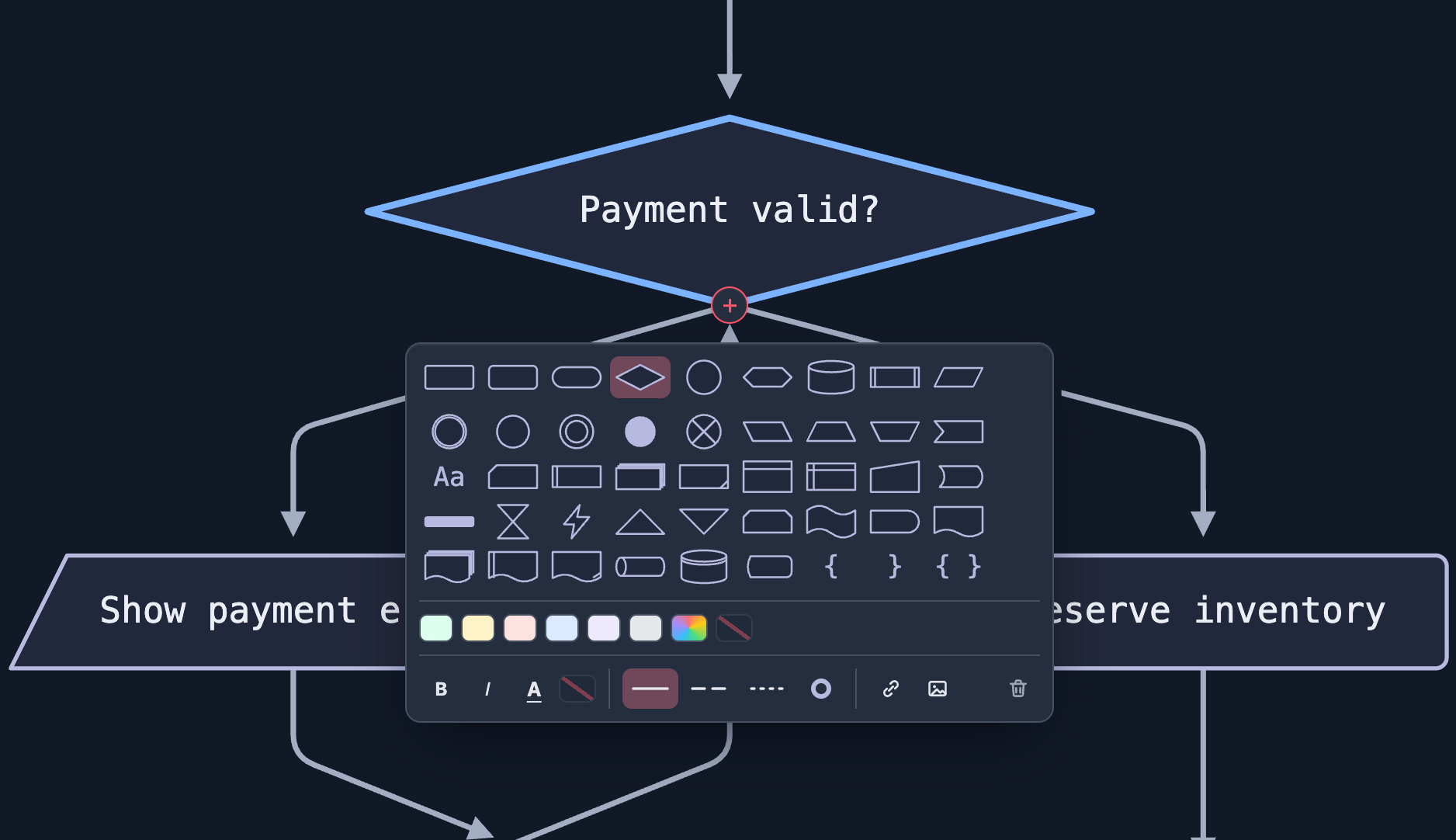
The Mermaid Editor is a split-screen editor for Mermaid flowcharts. You write Mermaid on the left, and on the right you get a real, interactive diagram rendered by JointJS+ for React. As you type, the source is reparsed, and the diagram is laid out as you go. When you edit the diagram, the text changes.
Here’s what that looks like in practice:
[ ], ( ), { }, [( )], and the rest), the extended v11 @{ shape: … } catalog, @{ img: … } image nodes, nested subgraph blocks, style, classDef, click links, linkStyle, edge labels, curves, and even @{ animate: true } dash animated links..mmd file that works in GitHub, GitLab, Notion, or anywhere else Mermaid does.PaperScroller, switch layout direction and link routing (curved or orthogonal), toggle light and dark themes, and export the diagram to SVG.The source editor is Monaco, the same editor that powers VS Code, with Mermaid syntax highlighting, autocompletion, find and replace, multiple cursors, and full undo history.
You can find the full source code on GitHub: clientIO/joint-demos/mermaid-editor.
The key aspect of the Mermaid Editor, precisely as in our Data Modeling App Template, is that there is a single source of truth, the Mermaid text.
The visual diagram is never edited directly, but rather always a rendering of the current source. When you type, the source changes and the diagram is rendered from it. When you change something on the canvas, the app doesn’t touch the diagram, but computes the new Mermaid text and derives the visual from that.
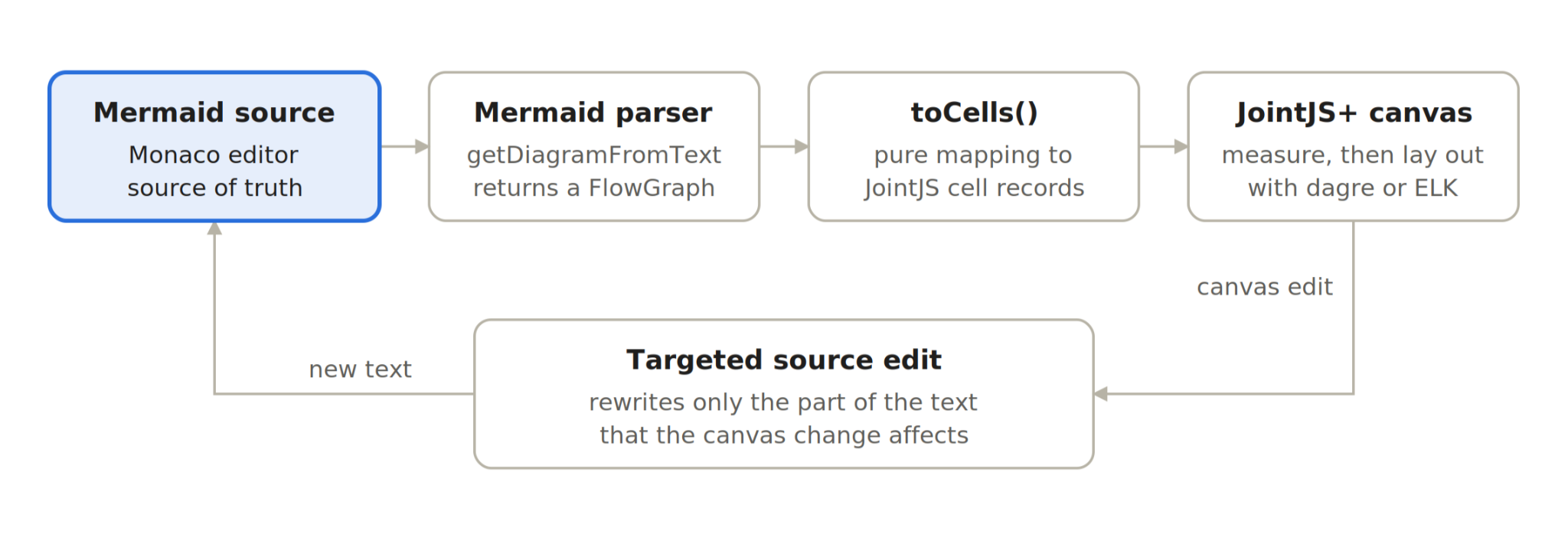
Everything flows clockwise. The text will be parsed by Mermaid, mapped to JointJS cells, and rendered. Canvas actions become text edits, which start the loop again. There’s no second model to keep in sync, so the diagram and the text can't fall out of sync.
An automatic layout engine calculates node positions on every render, just as Mermaid does. The editor supports the two layout engines Mermaid offers for flowcharts. Dagre, a layered layout with smooth, curved links, which is the default, and ELK, which routes links at right angles and is used when the source sets layout: elk. You can easily switch between them by editing Mermaid text.
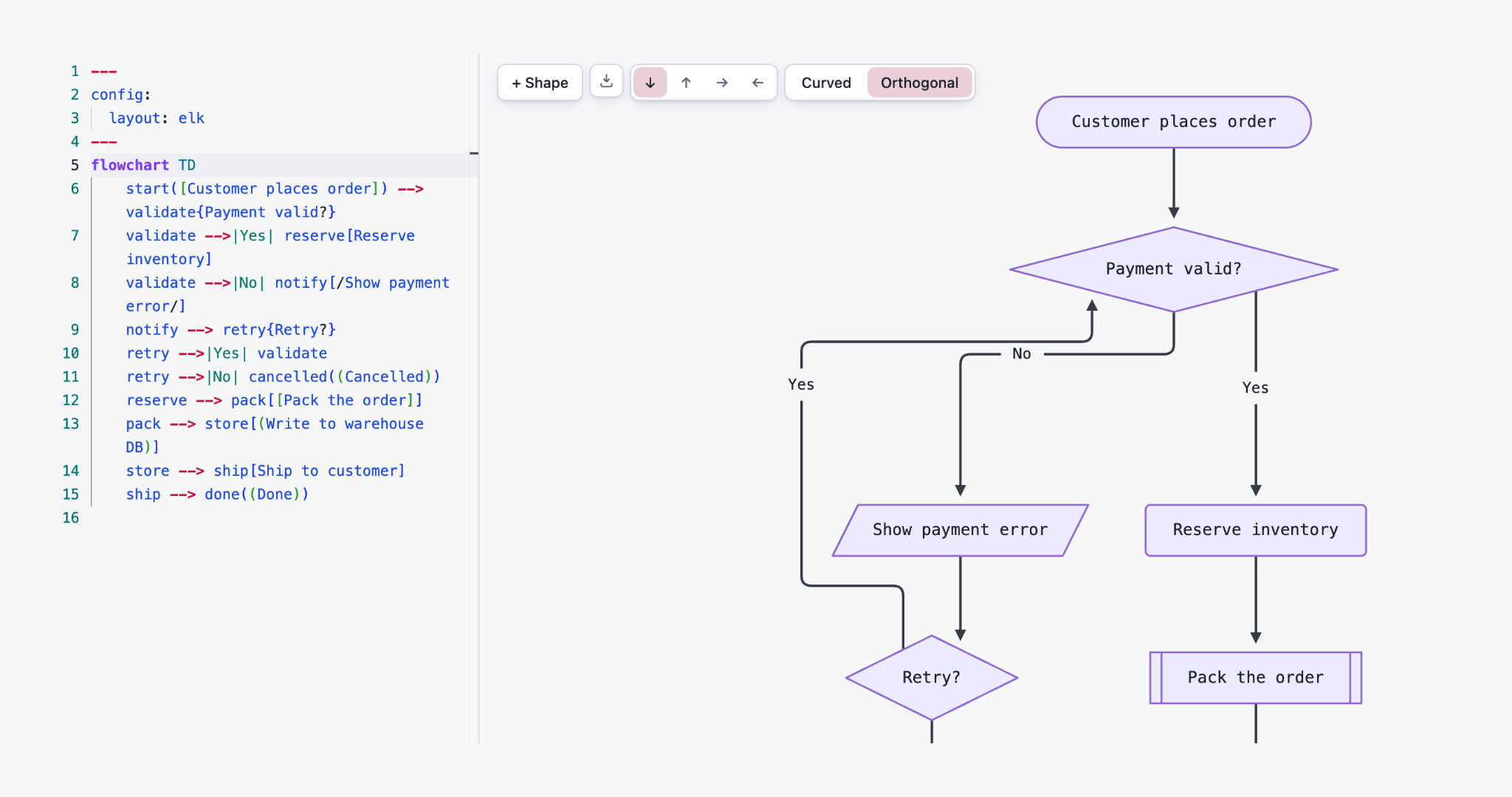
Mermaid’s syntax is large, evolving, and full of edge cases, so the demo uses Mermaid’s own parser and reads the result from its diagram database:
// src/mermaid/parse.ts

const mermaid = await loadMermaid();

let diagram;
try {
  diagram = await mermaid.mermaidAPI.getDiagramFromText(text);
} catch (error) {
  throw new MermaidParseError(toMessage(error));
}

// … (rejects diagram types other than flowchart)

const db = diagram.db as unknown as FlowDbLike;
const { nodes, edges } = db.getData();
When Mermaid is parsed, it figures out what each shape should be, breaks two-way arrows into separate one-way arrows, and keeps track of which nodes are inside each subgraph.
The parsed graph is then mapped onto declarative JointJS cell records with a single pure function:
// src/mermaid/to-cells.ts

export function toCells(flow: FlowGraph): MermaidCell[]
That’s the same pattern the Data Modeling app uses with schemaToCells.
Each node on the diagram is a React component that renders its Mermaid shape as SVG, and useMeasureElement measures the label and provides its exact sizing:
// src/components/render-node.tsx

const { width, height } = useMeasureElement(textRef, options);
That’s why a diamond with a long label grows bigger instead of clipping its text, and why a label can span as many lines as it needs to. Shapes are defined once in shapes.ts, and the same geometry draws both the node on the canvas and its icon in the toolbar’s shape picker, so the two can never drift apart.
A Mermaid subgraph turns into a JointJS container element. Its nodes are embedded inside it, and after layout, the container is resized to fit perfectly. Because the nodes really belong to the container, rather than sitting on a box drawn behind them, subgraphs can be nested too.
Each Mermaid link (the parser returns them as edges) becomes a JointJS link that carries everything Mermaid knows about it, from solid, dotted, or thick lines, to point, circle, or cross arrowheads at either end, labels, linkStyle colors and widths, curved routing for Mermaid’s curve families, and a CSS marching-dash animation for animate: true links.
Once every node is measured, DirectedGraph.layout from @joint/layout-directed-graph arranges the graph in whatever direction the source declares (TB, BT, LR, or RL). The DirectedGraph.layout is the default, the same dagre-style layout Mermaid uses, with curved links. When you set layout: elk option, the editor switches to @joint/layout-elk with orthogonal links.
useOnElementsMeasured(({ graph: measuredGraph }) => {
    settle(measuredGraph, onLayoutSettled);
});
The useOnElementsMeasured hook repaints the paper right after the callback, so there’s never a frame where diagram nodes are visible at their pre-layout position.
Rendering Mermaid is the easier half. The hard part, and the reason so many Mermaid tools stop at a preview, is writing visual edits back into Mermaid format without breaking it.
The obvious approach is to regenerate the whole source from the parsed graph after every edit. It’s also the wrong one. Mermaid’s parsed output is a normalization, not a faithful syntax tree, so it has no comments, no formatting, no classDef names, and shapes come back as IDs rather than the delimiters the author typed. With this approach, every click on the canvas would reformat the author’s entire document, delete their comments, and produce a massive diff.
In this app, the source is never fully recreated. Every canvas action is a targeted edit that finds the exact span of text responsible for the change made and splices in the new value.
For example, here’s how renaming a node works:
// src/mermaid/edit-source.ts

export function setNodeLabel(source: string, id: CellId, label: string): string | null {
   // … (a v11 `id@{ label: … }` block is edited in place first)

   const parsed = parse(source);
   const declaration = findDeclaration(parsed, id);
   if (!declaration) return null;
   const text = quoteLabel(encodeBreaks(label.trim()));

   if (declaration.labelFrom !== undefined && declaration.labelTo !== undefined) {
       return splice(source, declaration.labelFrom, declaration.labelTo, text);
   }
   // A bare `a --> b` has no shape to hold a label; give it the default one.
   if (declaration.shapeFrom !== undefined && declaration.shapeTo !== undefined) {
       return splice(source, declaration.shapeFrom, declaration.shapeTo, `[${text}]`);
   }
   return splice(source, declaration.idTo, declaration.idTo, `[${text}]`);
}
Ideally, Mermaid's own parser would say where each piece of the diagram sits in the text. Mermaid's newer diagram types are parsed with Langium, which returns a typed syntax tree whose nodes record their exact offset and length in the source. Flowcharts, though, haven't been migrated yet. They still use Mermaid's older Jison grammar, which Mermaid now marks as deprecated, and Jison hands back the finished diagram data with no record of where anything came from in the text. To edit the source precisely, you need a second parser that keeps positions.
So each edit parses the current source using a separate Lezer grammar for Mermaid from the codemirror-lang-mermaid package, but it doesn’t interpret the diagram. It only records where each node ID, shape bracket, and label sits in the text. The edit then replaces just that piece, so the rest of the source, including comments and formatting, stays exactly as the author wrote it.
There's one of these functions per action, and each one deals with corner cases of Mermaid syntax so the UI doesn't have to.
The React side is equally small. Every handler on the node toolbar runs one of these functions on the current source and hands the result back to the same state the editor writes to:
// src/app.tsx

onLabelChange: (id, label) => apply(setNodeLabel(sourceRef.current, id, label)),
onShapeChange: (id, shape) => apply(setNodeShape(sourceRef.current, id, shape)),
onFillChange: (id, fill) => apply(setNodeFill(sourceRef.current, id, fill)),
Any change, whether typed or made on the canvas, is handled in the same way. There are no separate processes for canvas and editor edits, so they always stay in sync. Since every edit only updates the text, it’s easy to test these changes, and the repo includes unit tests for edits like removing elements or updating labels and links.
A two-way binding is easy to describe and surprisingly easy to get subtly wrong. Most of the remaining code in the demo is about making it feel instant and predictable.
The text and diagram don’t directly control each other. Instead, the app manages selection in one central place. Whenever you interact with either side, that action is reported up, so the app then knows what to display in both the text and the diagram.
// src/app.tsx

interface Selection {
   readonly ids: readonly CellId[];
   readonly origin: 'canvas' | 'editor';
}
For example:
By letting the app handle selection, changes don’t bounce back and forth between the text and the diagram. This keeps everything in sync without causing endless update loops.
The demo, as it’s always the case with JointJS application templates, is optimized for performance, from the big picture to the smallest details.
Typing is debounced by 300 ms, so the editor is not parsing text on every keystroke. But actions like picking a shape, loading an example, or hitting undo happen right away without any delay. This avoids lag and keeps the app feeling quick and responsive.
Two heavy dependencies, Mermaid and Monaco, are loaded with dynamic imports, so each comes in its own chunk instead of the app’s main bundle. And since JointJS for React works with declarative cell records, an edit that only changes a label or a color updates the existing graph instead of rebuilding it.
As with any JointJS app template, we paid special consideration to accessibility.
The app works with screen readers, everything is accessible with keyboard, text not only has sufficient contrast but also looks great in both themes, and reduced-motion preferences are respected, enabling users to disable unnecessary animations (@media (prefers-reduced-motion: reduce) {}).
The demo is a complete app, built from two pieces you can embed into your own product. The Mermaid logic is in src/mermaid/ and the React components in src/components/. The app shell in app.tsx holds the raw text as state and connects the two:
// src/app.tsx (simplified)

<EditorPanel
   source={source}
   onSourceChange={handleSourceChange}
   onCursorNodeChange={selectFromEditor}
   highlightedIds={selection.origin === 'canvas' ? selection.ids : NO_IDS}
/>
<MermaidDiagram
   direction={rendered.direction}
   layout={rendered.layout}
   cells={rendered.cells}
   selectedIds={selection.ids}
   onSelect={selectFromCanvas}
   edit={edit}
   linkEdit={linkEdit}
/>
Notice that the diagram component, MermaidDiagram, never sees the Mermaid text. It receives a list of shapes and links to draw, and when the user changes something, it reports the change. The app shell turns that info into updated Mermaid text and passes the new shapes back down. Because the component only draws and reports, you can plug it into any app that stores Mermaid text:
EditorPanel and MermaidDiagram are completely separate components. Developers probably want both side by side, but for non-technical users, you can show only the canvas and its toolbars, and keep Mermaid behind the scenes.parse.ts, which contains no React or canvas code, so you can easily extend it for the parts of Mermaid your users rely on.index.css), so you can easily tweak them to match your own brand and product style.If you read our Data Modeling App Template walkthrough, the shape of this app will look familiar. In Data Modeling Demo, SQL DDL serves as the text format, and the graph carries the schema. In Mermaid Editor Demo, Mermaid functions as the text format, and the source carries the diagram. In both cases:
That makes the demo a useful starting point well beyond flowcharts. A few places it fits naturally:
parse.ts and edit-source.ts for another grammar (another Mermaid diagram type, PlantUML, D2, Graphviz DOT, or your own DSL), and most of the rendering and interaction layer stays as it is.The current demo covers Mermaid flowcharts. Other Mermaid types like sequence or state diagrams would need their own mapping in toCells and their own source edits, but the architecture doesn’t change.
The quickest way to see what this does is to open the live Mermaid Editor demo and paste in a flowchart of your own. Pick something from a real README, or ask your favorite LLM to generate one. Then click around, rename a node, change an arrow, switch the layout direction, and watch the source follow along.
When you’re ready to embed it in your own app, download the app template locally:
npx @joint/cli download mermaid-editor/reactYou’ll need access to the JointJS+ for React package, through a license or a free trial. The full source is on GitHub: clientIO/joint-demos/mermaid-editor.
Like our other demos, the codebase is heavily commented with the reasoning behind each decision, which makes it a good fit for an AI coding agent. Point your agent at it, describe your use case, and let it adapt the demo. For best results, set up the JointJS MCP Server, which gives your agent direct access to up-to-date JointJS docs and demo code.
Happy diagramming!